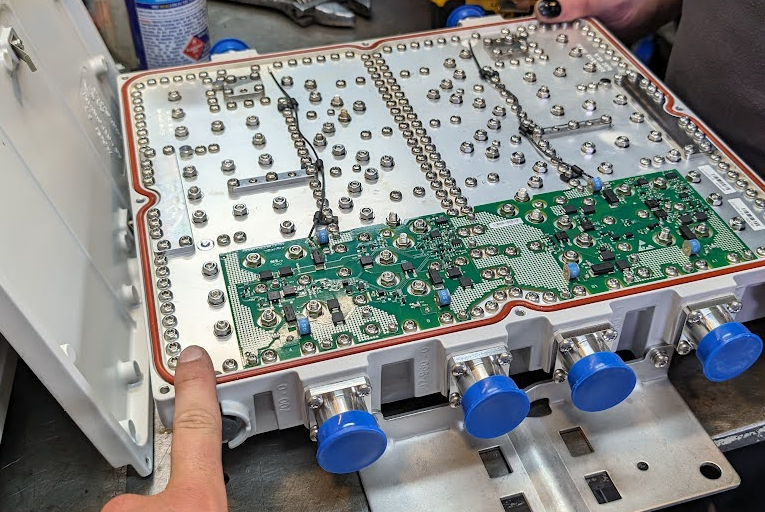
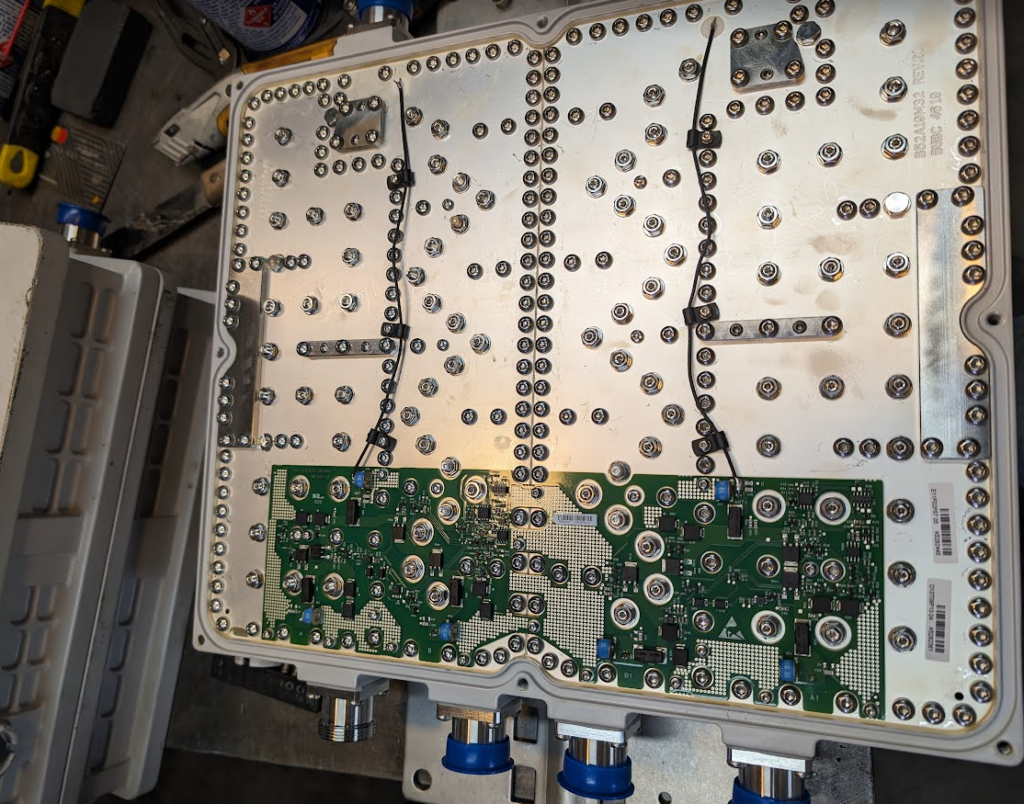
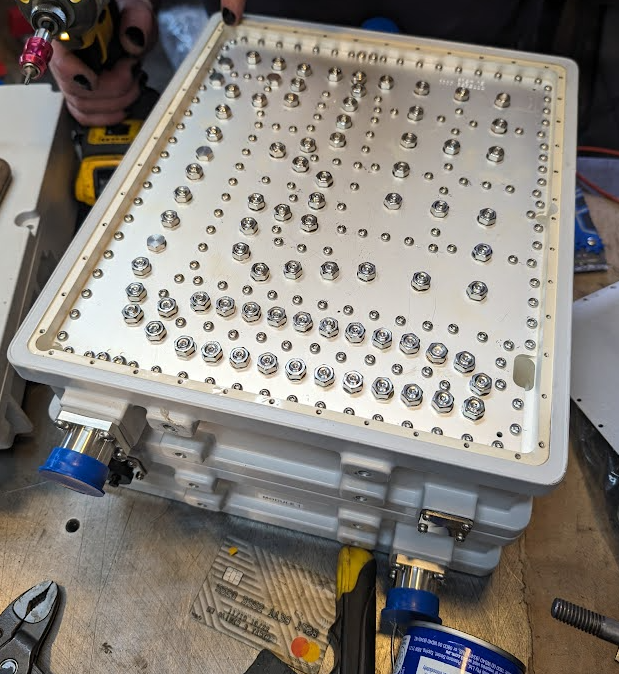
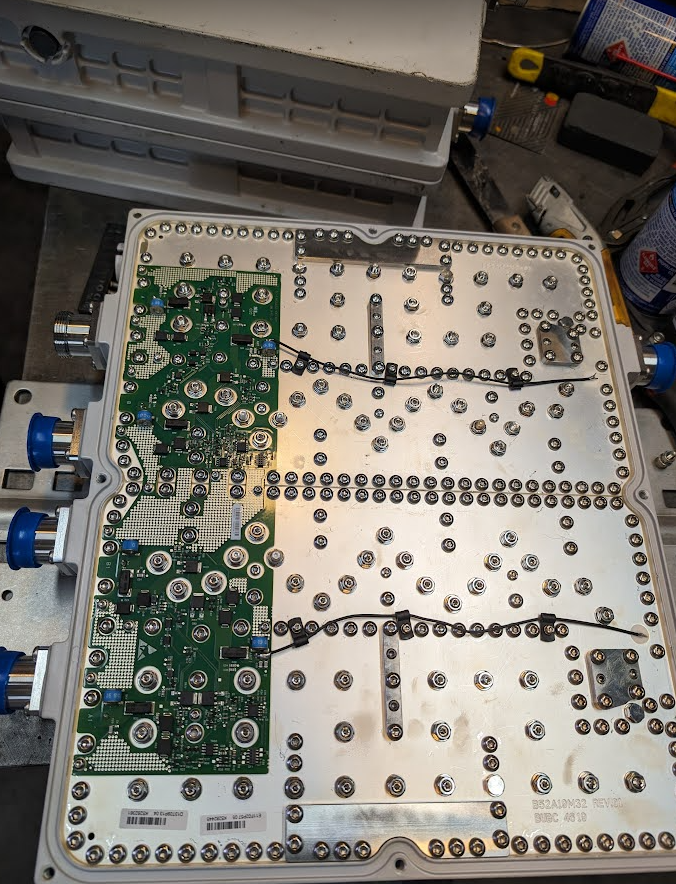
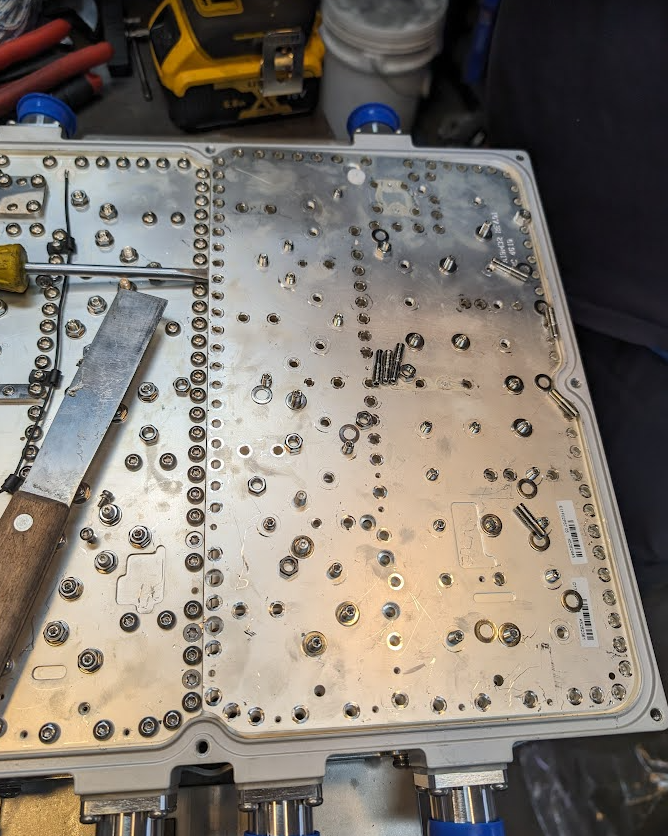
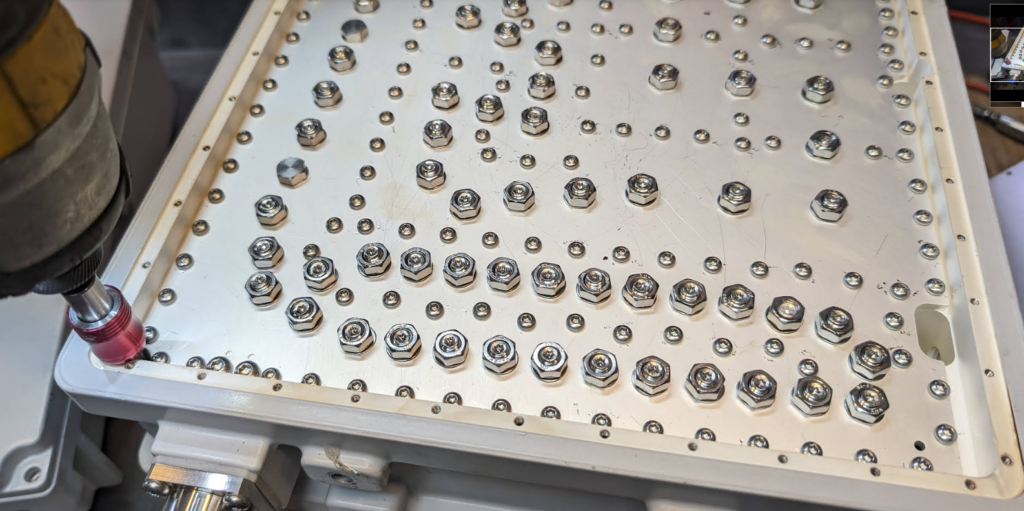
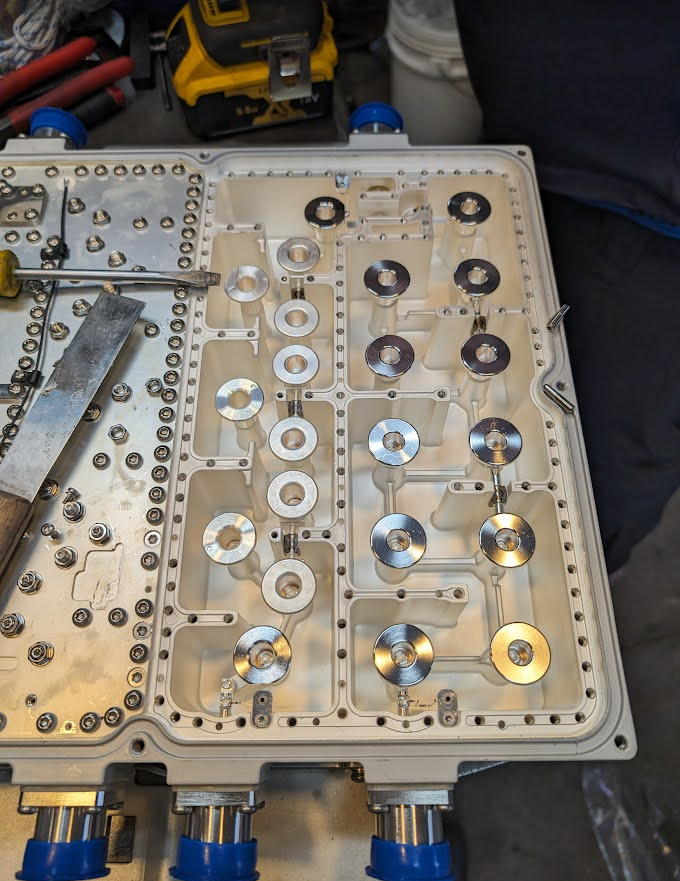
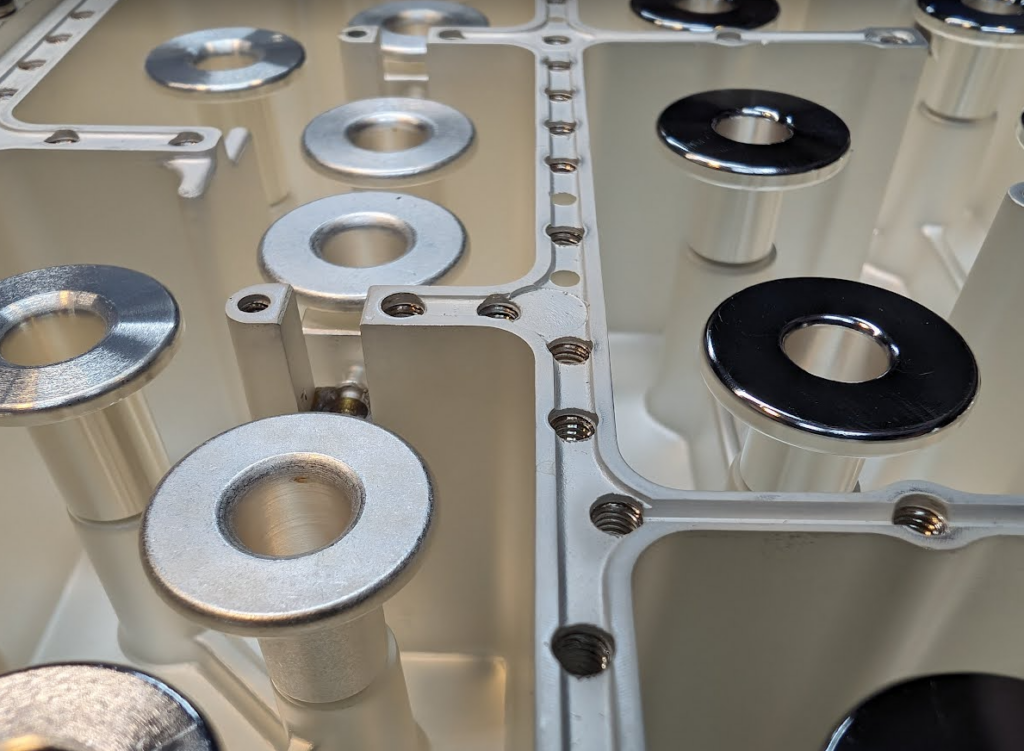
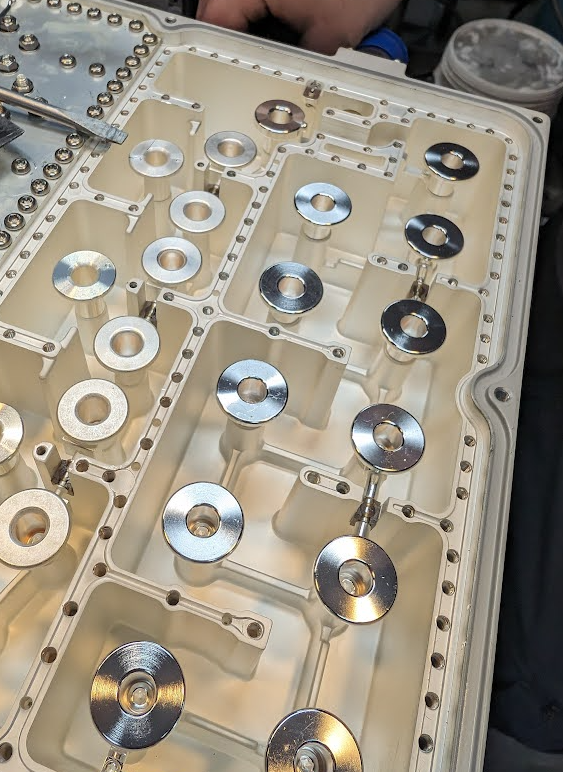
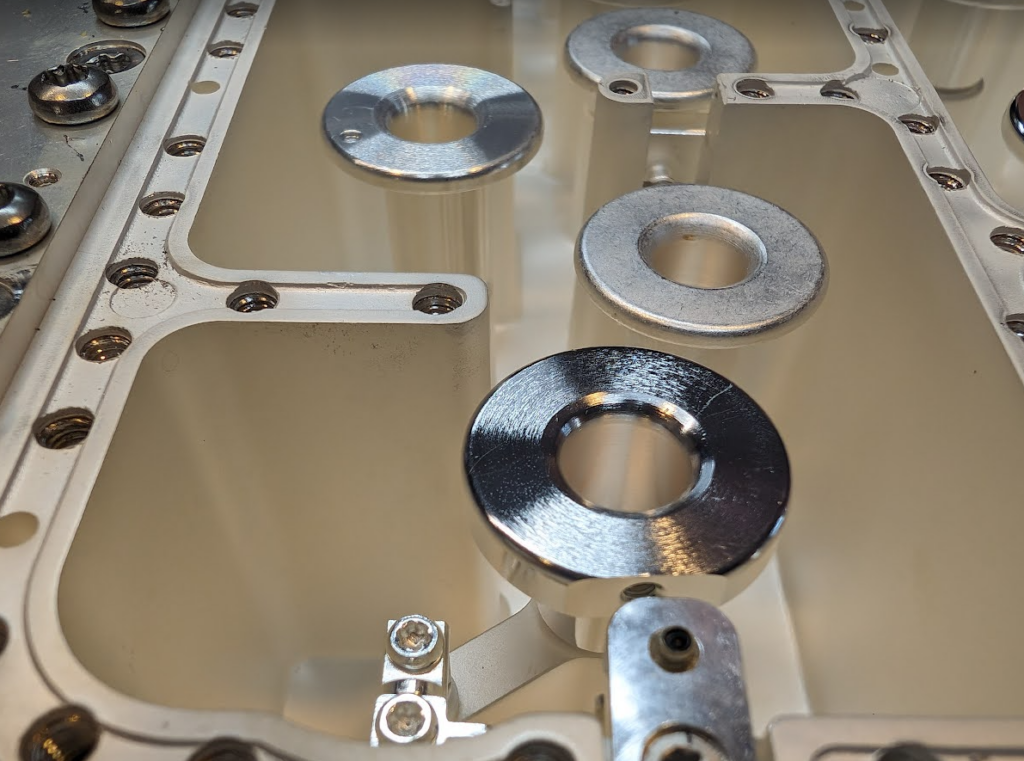
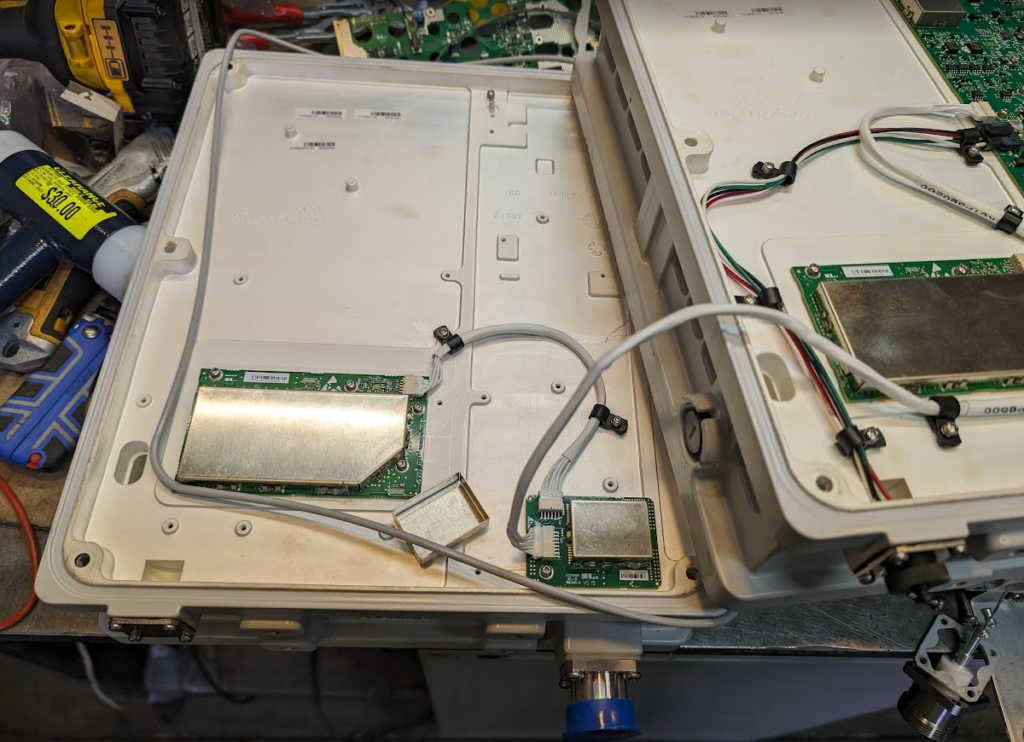
I recently ended up with a few Commscope RF combiners from a cell site, they’re not on frequencies that are of any use to us, so, let’s see what’s inside.
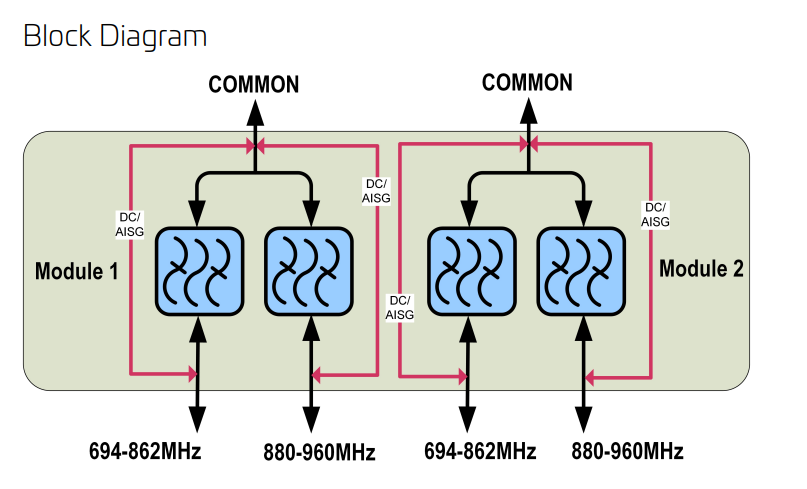
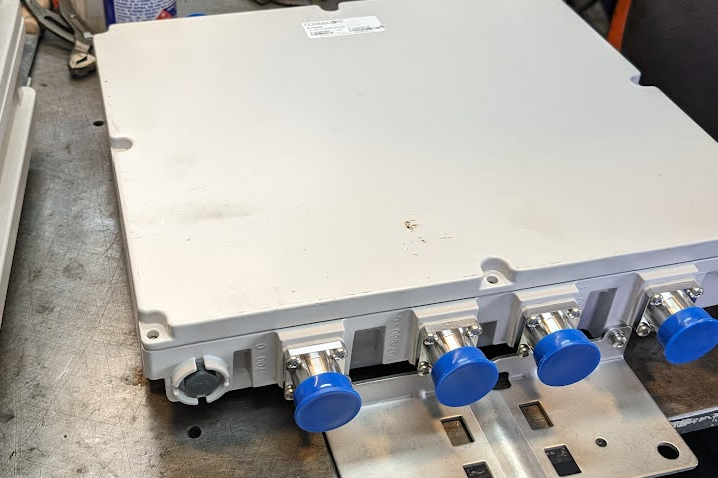
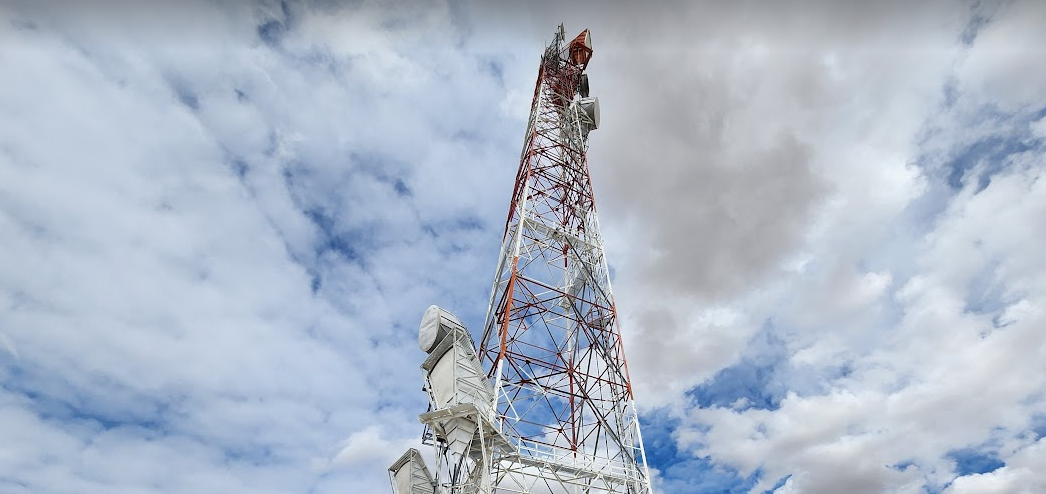
The units on the bench are Commscope Diplexer units, these ones allow you to put a signal between 694-862Mhz, and another signal between 880-960Mhz, on the same RF feeder up the tower.
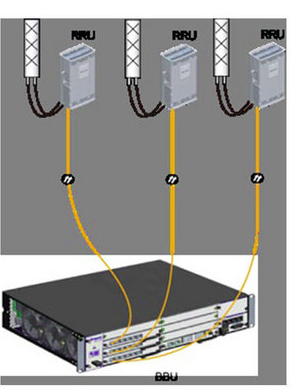
It’s a nifty trick from the days where radio units lived at the bottom of the tower, but now with Remote Radio Units, and Active Antenna Units, it’s becoming increasingly uncommon to have radio units in the site hut, and more common to just run DC & fibre up the tower and power a radio unit right next to the antenna – This is especially important for higher frequencies where of course the feeder loss is greater.
Diplexer unit before it is maimed…
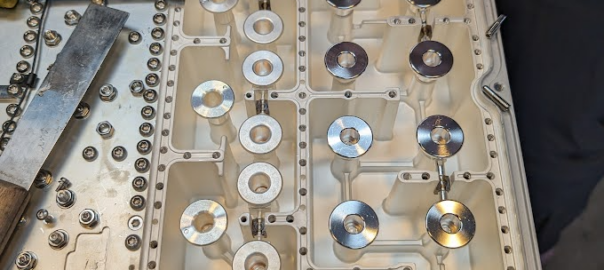
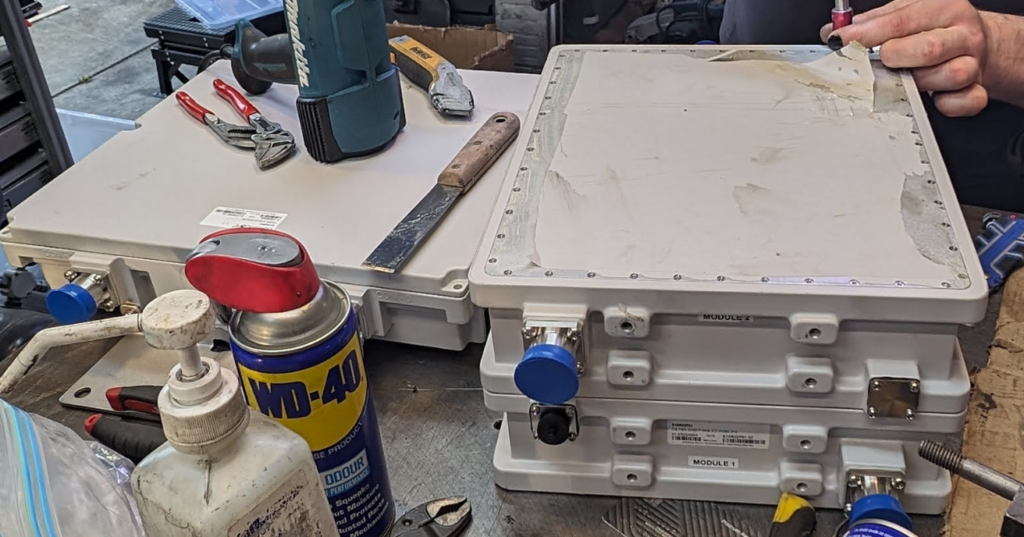
Anywho, that’s about all I know of them, after the liberal application of chemicals to remove the stickers and several burns from a heat gun, we started to get the unit open, to show the zillion adjustment bolts, and finely machined parts.
A lot of screwsBonus TMA
Thanks to Oliver for offering up the bench space when I rocked to up to their house with some stuff to pull apart.
Advanced Mobile Location (AML) is being rolled out by a large number of mobile network operators to provide accurate caller location to emergency services, so how does it work, what’s going on and what do you need to know?
Recently we’ve been doing a lot of work on emergency calling in IMS, and meeting requirements for NG-112 / e911, etc.
This led me to seeing my first Advanced Mobile Location (AML) SMS in the wild.
For those unfamiliar, AML is a fancy text message that contains the callers location, accuracy, etc, that is passed to emergency services when you make a call to emergency services in some countries.
It’s sent automatically by your handset (if enabled) when making a call to an emergency number, and it provides the dispatch operator with your location information, including extra metadata like the accuracy of the location information, height / floor if known, and level of confidence.
Google has their own version of AML called ELS, which they claim is supported on more than 99% of Android phones (I’m unclear on what this means for Harmony OS or other non-Google backed forks of Android), and Apple support for AML starts from iOS 11 onwards, meaning it’s supported on iPhones from the iPhone 5S onards,.
Call Flow
When a call is made to the PSAP based on the Emergency Calling Codes set on the SIM card or set in the OS, the handset starts collecting location information. The phone can pull this from a variety of sources, such as WiFi SSIDs visible, but the best is going to be GPS or one of it’s siblings (GLONASS / Galileo).
Once the handset has a good “lock” of a location (or if 20 seconds has passed since the call started) it bundles up all of this information the phone has, into an SMS and sends it to the PSAP as a regular old SMS.
The routing from the operator’s SMSc to the PSAP, and the routing from the PSAP to the dispatcher screen of the operator taking the call, is all up to implementation. For the most part the SMS destination is the emergency number (911 / 112) but again, this is dependent on the country.
Inside the SMS
To the user, the AML SMS is not seen, in fact, it’s actually forbidden by the standard to show in the “sent” items list in the SMS client.
On the wire, the SMS looks like any regular SMS, it can use GSM7 bit encoding as it doesn’t require any special characters.
Each attribute is a key / value pair, with semicolons (;) delineating the individual attributes, and = separating the key and the value.
If you’ve got a few years of staring at Wireshark traces in Hex under your belt, then this will probably be pretty easy to get the gist of what’s going on, we’ve got the header (A”ML=1″) which denotes this is AML and the version is 1.
After that we have the latitude (lt=), longitude (lg=), radius (rd=), time of positioning (top=), level of confidence (lc=), positioning method (pm=) with G for GNSS, W for Wifi signal, C for Cell or N for a position was not available, and so on.
AML outside the ordinary
Roaming Scenarios
If an emergency occurs inside my house, there’s a good chance I know the address, and even if I don’t know my own address, it’s probably linked to the account holder information from my telco anyway.
AML and location reporting for emergency calls is primarily relied upon in scenarios where the caller doesn’t know where they’re calling from, and a good example of this would be a call made while roaming.
If I were in a different country, there’s a much higher likelihood that I wouldn’t know my exact address, however AML does not currently work across borders.
The standard suggests disabling SMS when roaming, which is not that surprising considering the current state of SMS transport.
Without a SIM?
Without a SIM in the phone, calls can still be made to emergency services, however SMS cannot be sent.
That’s because the emergency calling standards for unauthenticated emergency calls, only cater for
This is a limitation however this could be addressed by 3GPP in future releases if there is sufficient need.
HTTPS Delivery
The standard was revised to allow HTTPS as the delivery method for AML, for example, the below POST contains the same data encoded for use in a HTTP transaction:
Implementation of this approach is however more complex, and leads to little benefit.
The operator must zero-rate the DNS, to allow the FQDN for this to be resolved (it resolves to a different domain in each country), and allow traffic to this endpoint even if the customer has data disabled (see what happens when your handset has PS Data Off ), or has run out of data.
Due to the EU’s stance on Net Neutrality, “Zero Rating” is a controversial topic that means most operators have limited implementation of this, so most fall back to SMS.
Other methods for sharing location of emergency calls?
In some upcoming posts we’ll look at the GMLC used for E911 Phase 2, and how the network can request the location from the handset.
In the cellular world, subscribers are charged for data from the IP, transport and applications layers; this means you pay for the IP header, you pay for the TCP/UDP header, and you pay for the contents (the cat videos it contains).
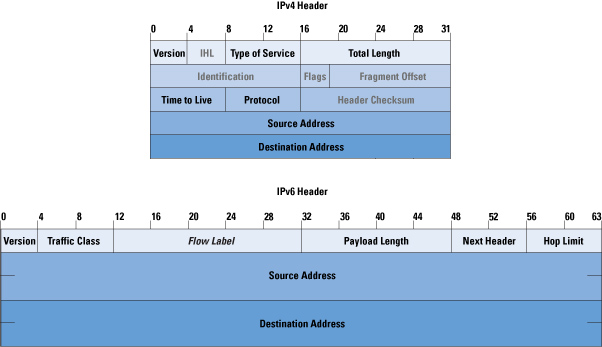
This also means if an operator moves mobile subscribers from IPv4 to IPv6, there’s an extra 20 bytes the customer is charged for for every packet sent / received, which the customer is charged for – This is because the IPv6 header is longer than the IPv4 header.
In most cases, mobile subs don’t get a choice as to if their connection is IPv4 or IPv6, but on a like for like basis, we can say that if a customer moves is on IPv6 every packet sent/received will have an extra 20 bytes of data consumed compared to IPv4.
This means subscribers use more data on IPv6, and this means they get charged for more data on IPv6.
For IoT applications, light users and PAYG users, this extra 20 bytes per packet could add up to something significant – But how much?
We can quantify this, but we’d need to know the number of packets sent on average, and the quantity of the data transferred, because the number of packets is the multiplier here.
So for starters I’ve left a phone on the desk, it’s registered to the network but just sitting in Idle mode – This is an engineering phone from an OEM, it’s just used for testing so doesn’t have anything loaded onto it in terms of apps, it’s not signed into any applications, or checking in the background, so I thought I’d try something more realistic.
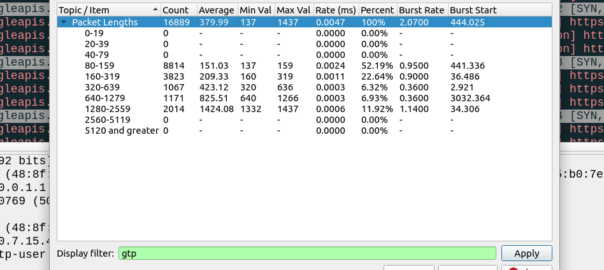
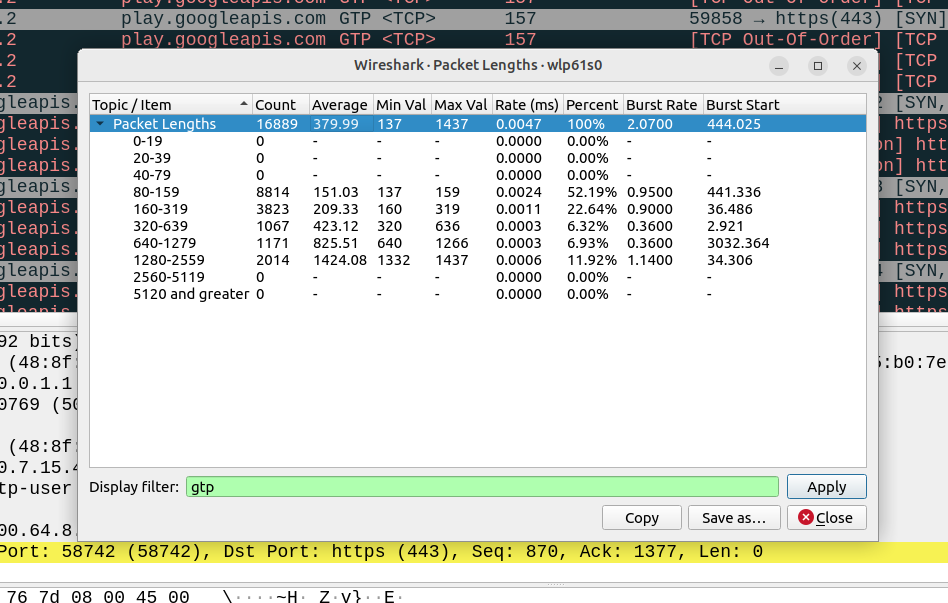
So to get a clearer picture, I chucked a SIM in my regular everyday phone I use personally, registered it to the cellular lab I have here. For the next hour I sniffed the GTP traffic for the phone while it was sitting on my desk, not touching the phone, and here’s what I’ve got:
Overall the PCAP includes 6,417,732 bytes of data, but this includes the transport and GTP headers, meaning we can drop everything above it in our traffic calculations.
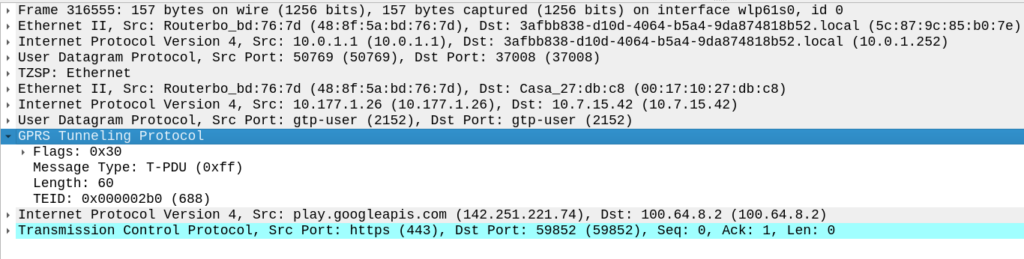
For this I’ve got 14 bytes of ethernet, 20 bytes IP, 8 bytes UDP and 5 bytes for TZSP (this is to copy the traffic from the eNB to my local machine), then we’ve got the transport from the eNB to the SGW, 14 bytes of ethernet again, 20 bytes of IP , 8 bytes of UDP and 8 bytes of GTP then the payload itself. Phew. All this means we can drop 97 bytes off every packet.
We have 16,889 packets, 6,417,732 bytes in total, minus 97 bytes from each gives us 1,638,233 of headers to drop (~1.6MB) giving us a total of 4.556 MB traffic to/from the phone itself.
This means my Android phone consumes 4.5 MB of cellular data in an hour while sitting on the desk, with 16,889 packets in/out.
Okay, now we’re getting somewhere!
So now we can answer the question, if each of these 16k packets was IPv6, rather than IPv4, we’d be adding another 20 bytes to each of them, 20 bytes x 16,889 packets gives 337,780 bytes (~0.3MB) to add to the total.
If this traffic was transferred via IPv6, rather than IPv4, we’d be looking at adding 20 bytes to each of the 16,889 packets, which would equate to 0.3MB extra, or about 7% overhead compared to IPv4.
But before you go on about what an outrage this IPv6 transport is, being charged for those extra bytes, that’s only one part of the picture.
There’s a reason operators are finally embracing IPv6, and it’s not to put an extra 7% of traffic on the network (I think if you asked most capacity planners, they’d say they want data savings, not growth).
IPv6 is, for lack of a better term, less rubbish than IPv4.
There’s a lot of drivers for IPv6, and some of these will reduce data consumption. IPv6 is actually your stuff talking directly to the remote stuff, this means that we don’t need to rely on NAT, so no need to do NAT keepalives, and opening new sessions, which is going to save you data. If you’re running apps that need to keep a connection to somewhere alive, these data savings could negate your IPv6 overhead costs.
Will these potential data savings when using IPv6 outweigh the costs?
That’s going to depend on your use case.
If you’ve extremely bandwidth / data constrained, for example, you have an IoT device on an NTN / satellite connection, that was having to Push data every X hours via IPv4 because you couldn’t pull data from it as it had no public IP, then moving it to IPv6 so you can pull the data on the public IP, on demand, will save you data. That’s a win with IPv6.
If you’re a mobile user, watching YouTube, getting push notifications and using your phone like a normal human, probably not, but if you’re using data like a normal user, you’ve probably got a sizable data allowance that you don’t end up fully consuming, and the extra 20 bytes per packet will be nothing in comparison to the data used to watch a 2k video on your small phone screen.
There’s old joke about standards that the great thing about standards there’s so many to choose from.
SMS wasn’t there from the start of GSM, but within a year of the inception of 2G we had SMS, and we’ve had SMS, almost totally unchanged, ever since.
In a recent Twitter exchange, I was asked, what’s the best way to transport SMS? As always the answer is “it depends” so let’s take a look together at where we’ve come from, where we are now, and how we should move forward.
How we got Here
Between 2G and 3G SMS didn’t change at all, but the introduction of 4G (LTE) caused a bit of a rethink regarding SMS transport.
Early builders of LTE (4G) networks launched their 4G offerings without 4G Voice support (VoLTE), with the idea that networks would “fall back” to using 2G/3G for voice calls.
This meant users got fast data, but to make or receive a call they relied on falling back to the circuit switched (2G/3G) network – Hence the name Circuit Switched Fallback.
Falling back to the 2G/3G network for a call was one thing, but some smart minds realised that if a phone had to fall back to a 2G/3G network every time a subscriber sent a text (not just calls) – And keep in mind this was ~2010 when SMS traffic was crazy high; then that would put a huge amount of strain on the 2G/3G layers as subs constantly flip-flopped between them.
The SGs-AP interface has two purposes; One, It can tell a phone on 4G to fallback to 2G/3G when it’s got an incoming call, and two; it can send and receive SMS.
SMS traffic over this interface is sometimes described as SMS-over-NAS, as it’s transported over a signaling channel to the UE.
This also worked when roaming, as the MSC from the 2G/3G network was still used, so SMS delivery worked the same when roaming as if you were in the home 2G/3G network.
Enter VoLTE & IMS
Of course when VoLTE entered the scene, it also came with it’s own option for delivering SMS to users, using IP, rather than the NAS signaling. This removed the reliance on a link to a 2G/3G core (MSC) to make calls and send texts.
This was great because it allowed operators to build networks without any 2G/3G network elements and build a fully standalone LTE only network, like Jio, Rakuten, etc.
In roaming scenarios, S8 Home Routing for VoLTE enabled SMS to be handled when roaming the same way as voice calls, which made SMS roaming a doddle.
4G SMS: SMS over IP vs SMS over NAS
So if you’re operating a 4G network, should you deliver your SMS traffic using SMS-over-IP or SMS-over-NAS?
Generally, if you’ve been evolving your network over the years, you’ve got an MSC and a 2G/3G network, you still may do CSFB so you’ve probably ended up using SMS over NAS using the SGs-AP interface. This method still relies on “the old ways” to work, which is fine until a discussion starts around sunsetting the 2G/3G networks, when you’d need to move calling to VoLTE, and SMS over NAS is a bit of a mess when it comes to roaming.
Greenfield operators generally opt for SMS over IP from the start, but this has its own limitations; SMS over IP is has awful efficiency which makes it unsuitable for use with NB-IoT applications which are bandwidth constrained, support for SMS over IP is generally limited to more expensive chipsets, so the bargain basement chips used for IoT often don’t support SMS over IP either, and integration of VoLTE comes with its own set of challenges regarding VoLTE enablement.
5G enters the scene (Nsmsf_SMService)
5G rolled onto the scene with the opportunity to remove the SMS over NAS option, and rely purely on SMS over IP (IMS); forcing the industry to standardise on an option alas this did not happen.
This added another option for SMS delivery dependent on the access network used, and the Nsmsf_SMService interface does not support roaming.
Of course if you are using Voice over NR (VoNR) then like VoLTE, SMS is carried in a SIP message to the IMS, so this negates the need for the Nsmsf_SMService.
2G/3G Shutdown – Diameter to replace SGs-AP (SGd)
With the 2G/3G shutdown in the US operators who had up until this point been relying on SMS-over-NAS using the SGs-AP interface back to their MSCs were forced to make a decision on how to route SMS traffic, after the MSCs were shut down.
This landed with SMS-over-Diameter, where the 4G core (MME) communicates over Diameter with the SMSc.
This has adoption by all the US operators, but we’re not seeing it so widely deployed in the rest of the world.
State of Play
Option
Conditions
Notes
MAP
2G/3G Only
Relies on SS7 signaling and is very old Supports roaming
SGs-AP (SMS-over-NAS)
4G only relies on 2G/3G
Needs an MSC to be present in the network (generally because you have a 2G/3G network and have not deployed VoLTE) Supports limited roaming
SMS over IP (IMS)
4G / 5G
Not supported on 2G/3G networks Relies on a IMS enabled handset and network Supports roaming in all S8 Home Routed scenarios Device support limited, especially for IoT devices
Diameter SGd
4G only / 5G NSA
Only works on 4G or 5G NSA Better device support than 4G/5G Supports roaming in some scenarios
Nsmsf_SMService
5G standalone only
Only works on 5GC Doesn’t support roaming
The convoluted world of SMS delivery options
A Way Forward:
While the SMS payload hasn’t changed in the past 31 years, how it is transported has opened up a lot of potential options for operators to use, with no clear winner, while SMS revenues and traffic volumes have continued to fall.
For better or worse, the industry needs to accept that SMS over NAS is an option to use when there is no IMS, and that in order to decommission 2G/3G networks, IMS needs to be embraced, and so SMS over IP (IMS) supported in all future networks, seems like the simple logical answer to move forward.
And with that clear path forward, we add in another wildcard…
But, when you’ve only got a finite resource of bandwidth, and massive latencies to contend with, the all-IP architecture of IMS (VoLTE / VoNR) and it’s woeful inefficiency starts to really sting.
Of course there are potential workarounds here, Robust Header Correction (ROHC) can shrink this down, but it’s still going to rely on the 3 way handshake of TCP, TCP keepalive timers and IMS registrations, which in turn can starve the radio resources of the satellite link.
Even with SMS over 30 years old, we can still expect it to be a part of networks for years to come, even as WhatsApp / iMessage, etc, offer enhanced services. As to how it’s transported and the myriad of options here, I’m expecting that we’ll keep seeing a multi-transport mix long into the future.
For simple, cut-and-dried 4G/5G only network, IMS and SMS over IP makes the most sense, but for anything outside of that, you’ve got a toolbox of options for use to make a solution that best meets your needs.
Even before 5G was released, the arms race to claim the “fastest” speeds on LTE, NSA and SA networks has continued, with pretty much every operator claiming a “first” or “fastest”.
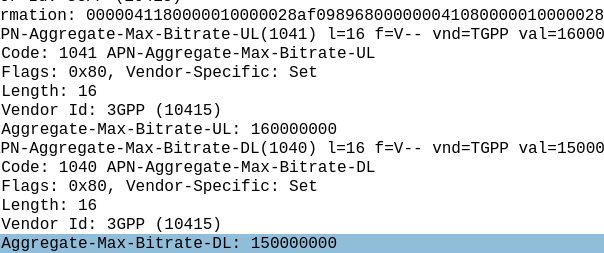
I myself have the fastest 5G network available* but I thought I’d look at how big the values are we can put in for speed, these are the Maximum Bitrate Values (like AMBR) we can set on an APN/DNN, or on a Charging Rule.
*Measurement is of the fastest 5G network in an eastward facing office, operated by a person named Nick, in a town in Australia. Other networks operated by people other than those named Nick in eastward facing office outside of Australia were not compared.
The answer for Release 8 LTE is 4294967294 bytes per second, aka 4295 Mbps 4.295 Gbps.
Not bad, but why this number?
The Max-Requested-Bandwidth-DL AVP tells the PGW the max throughput allowed in bits per second. It’s a Unsigned32 so max value is 4294967294, hence the value.
But come release 15 some bright spark thought we may in the not to distant future break this barrier, so how do we go above this?
The answer was to bolt on another AVP – the “Extended-Max-Requested-BW-DL” AVP ( 554 ) was introduced, you might think that means the max speed now becomes 2x 4.295 Gbps but that’s not quite right – The units was shifted.
This AVP isn’t measuring bits per second it’s measuring kilobits per second.
So the standard Max-Requested-Bandwidth-DL AVP gives us 4.3 Gbps, while the Extended-Max-Requested-Bandwidth gives us a 4,295 Gbps.
We add the Extended-Max-Requested-Bandwidth AVP (4295 Gbps) onto the Max-Requested Bandwidth AVP (4.3 Gbps) giving us a total of 4,4299.3 Gbps.
Last year I purchased a cheap second hand Huawei macro base station – there’s lots of these on the market at the moment due to the fact they’re being replaced in many countries.
I’m using it in my lab environment, and as such the config I’ve got is very “bare bones” and basic. Keep in mind if you’re looking to deploy a Macro eNodeB in production, you may need more than just a blog post to get everything tuned and functioning properly…
In this post we’ll cover setting up a Huawei BTS3900 eNodeB from scratch, using the MML interface, without relying on the U2020 management tool.
Obviously the details I setup (IP Addressing, PLMN and RF parameters) are going to be different to what you’re configuring, so keep that in mind, where I’ve got my MME Addresses, site IDs, TACs, IP Addresses, RFUs, etc, you’ll need to substitute your own values.
A word on Cabinets
Typically these eNodeBs are shipped in cabinets, that contain the power supplies, alarm / environmental monitoring, power distribution, etc.
Early on in the setup process we’ll be setting the cabinet types we’ve got, and then later on we’ll tell the system what we have installed in which slots.
This is fine if you have a cabinet and know the type, but in my case at least I don’t have a cabinet manufactured by Huawei, just a rack with some kit mounted in it.
This is OK, but it leads to a few gotchas I need to add a cabinet (even though it doesn’t physically exist) and when I setup my RRUs I need to define what cabinet, slot and subrack it’s in, even though it isn’t in any. Keep this in mind as we go along and define the position of the equipment, that if you’re not using a real-world cabinet, the values mean nothing, but need to be kept consistent.
To begin we’ll need to setup the basics, by disabling DHCP and setting an local IP Address for the unit.
 SET DHCPSW: SWITCH=DISABLE;
 SET LOCALIP: IP="192.168.5.234", MASK="255.255.248.0";
Obviously your IP address details will be different. Next we’ll add an eNodeB function, the LMPT / UMPT can have multiple functions and multiple eNodeBs hosted on the same hardware, but in our case we’re just going to configure one:
Again, your eNodeB ID, location, site name, etc, are all going to be different, as will your location.
Next we’ll set the system to maintenance mode (MNTMODE), so we can make changes on the fly (this takes the eNB off the air, but we’re already off the air), you’ll need to adjust the start and end times to reflect the current time for the start time, and end time to be after you’re done setting all this up.
SET MNTMODE: MNTMode=INSTALL, ST=2013&09&20&15&00&00, ET=2013&09&25&15&00&00, MMSetRemark="NewSite Install";
Next we’ll set the operator details, this is the PLMN of the eNodeB, and create a new tracking area.
Next we’ll be setting and populating the cabinets I mentioned earlier. I’ll be telling the unit it’s inside a APM30 (Cabinet 0), and in Cabinet Number 0, Subrack 0, is a BBU3900.
 //To modify the cabinet type, run the following command:
 ADD CABINET:CN=0,TYPE=APM30;
 //Add a BBU3900 subrack, run the following command:
 ADD SUBRACK:CN=0,SRN=0,TYPE=BBU3900;
 //To configure boards and RF datas, run the following commands:
And inside the BBU3900 there’s some cards of course, and each card has as slot, as per the drawing below.
In my environment I’ve got a LMPT in slot 7, and a LBBP in Slot 3. There’s a fan and a UPEU too, so: We’ll add a board in Slot No. 7, of type LMPT, We’ll add a board in Slot No. 3, of type LBBP working on FDD, We’ll add a fan board in Slot No. 16, and a UPEU in Slot No. 18.
Huawei publish design guides for which cards should be in which slots, the general rule is that your LMPT / UMPT card goes in Slot 7, with your BBP cards (UBBP or LBBP) in slots 3, then 2, then 1, then 0. Fans and UPEUs can only go in the slots designed to fit them, so that makes it a bit easier.
Next we’ll need to setup our RRUs, for this we’ll need to setup an RRU chain, which is the Huawei term for the CPRI links and add an RRU into it:
//Modify the reference signal power.
MOD PDSCHCFG: LocalCellId=1, ReferenceSignalPwr=-81;

//Add an operator for the cell.
ADD CELLOP: LocalCellId=0, TrackingAreaId=0;

//Activate the cell.
ACT CELL: LocalCellId=1;
The Binding Support Function is used in 4G and 5G networks to allow applications to authenticate against the network, it’s what we use to authenticate for XCAP and for an Entitlement Server.
Rather irritatingly, there are two BSF addresses in use:
If the ISIM is used for bootstrapping the FQDN to use is:
bsf.ims.mncXXX.mccYYY.pub.3gppnetwork.org
But if the USIM is used for bootstrapping the FQDN is
bsf.mncXXX.mccYYY.pub.3gppnetwork.org
You can override this by setting the 6FDA EF_GBANL (GBA NAF List) on the USIM or equivalent on the ISIM, however not all devices honour this from my testing.
One of the hyped benefits of a 5G Core Networks is that 5GC can be used for wired networks (think DSL or GPON) – In marketing terms this is called “Wireless Wireline Convergence” (5G WWC) meaning DSL operators, cable operators and fibre network operators can all get in on this sweet 5GC action and use this sexy 5G Core Network tech.
This is something that’s in the standards, and that the big kit vendors are pushing heavily in their marketing materials. But will it take off? And should operators of wireline networks (fixed networks) be looking to embrace 5GC?
Comparing 5GC with current wireline network technologies isn’t comparing apples to apples, it’s apples to oranges, and they’re different fruits.
At its heart, the 3GPP Core Networks (including 5G Core) address one particular use cases of the cellular industry: Subscriber mobility – Allowing a customer to move around the network, being served by different kit (gNodeBs) while keeping the same IP Address.
The most important function of 5GC is subscriber mobility.
This is achieved through the use of encapsulating all the subscriber’s IP data into a GTP (A protocol that’s been around since 2G first added data).
Do I need a 5GC for my Fixed Network?
Wireline networks are fixed. Subscribers don’t constantly move around the network. A GPON customer doesn’t need to move their OLT every 30 minutes to a new location.
Encapsulating a fixed subscriber’s traffic in GTP adds significant processing overhead, for almost no gain – The needs of a wireline network operator, are vastly different to the needs of a cellular core.
Today, you can take a /24 IPv4 block, route it to a DSLAM, OLT or CMTS, and give an IP to 254 customers – No cellular core needed, just a router and your access device and you’re done, and this has been possible for decades. Because there’s no mobility the GTP encapsulation that is the bedrock for cellular, is not needed.
Rather than routing directly to Access Network kit, most fixed operators deploy BRAS systems used for fixed access. Like the cellular packet core, BRAS has been around for a very long time, with a massive install base and a sea of engineering experience in house, it meets the needs of the wireline industry who define its functions and roles along with kit vendors of wireline kit; the fixed industry working groups defined the BRAS in the same way the 3GPP and cellular industry working groups defined 5G Core.
I don’t forsee that we’ll see large scale replacement of BRAS by 5GC, for the same reason a wireless operator won’t replace their mobile core with a BRAS and PPPoE – They’re designed to meet different needs.
All the other features that have been added to the 3GPP Core Network functionality, like limiting speed, guaranteed throughput bearers, 5QI / QCI values, etc, are addons – nice-to-haves. All of these capabilities could be implemented in wireline networks today – if the business case and customer demand was there.
But what about slicing?
With dropping ARPUs across the board, additional services relating to QoS (“Network Slicing”) are being held up as the saving grace of revenues for cellular operators and 5G as a whole, however this has yet to be realized and early indications suggest this is not going to be anywhere near as lucrative as previously hoped.
What about cost savings?
In terms of cost-per-bit of throughput, the existing install base wireline operators have of heavy-metal kit capable of terabit switching and routing has been around for some time in fixed world, and is what most 5G Cores will connect to as their upstream anyway, so there won’t be any significant savings on equipment, power consumption or footprint to be gained.
Fixed networks transport the majority of the world’s data today – Wireline access still accounts for the majority of traffic volumes, so wireline kit handles a higher magnitude of throughput than it’s Packet Core / 5GC cousins already.
Cutting down the number of parts in the network is good though right?
If you’re operating both a Packet Core for Cellular, and a fixed network today, then you might think if you moved from the traditional BRAS architecture fore the wired network to 5GC, you could drop all those pesky routers and switches clogging up your CO, Exchanges and Data Centers.
The problem is that you still need all of those after the 5GC to be able to get the traffic anywhere users want to go. So the 5GC will still need all of that kit, all your border routers and peering routers will remain unchanged, as well as domestic transmission, MPLS and transport.
The parts required for operating fixed networks is actually pretty darn small in comparison to that of 5GC.
TL;DR?
While cellular vendors would love to sell their 5GC platform into fixed operators, the premise that they are willing to replace existing BRAS architectures with 5GC, is as unlikely in my view as 5GC being replaced by BRAS.
If you’ve ever worked in roaming, you’ll probably have had the misfortune of dealing with Transferred Account Procedures aka TAP files.
It’s used for billing a 2G GSM call right up to 5G data usage, if you use a service while roaming, somewhere in the world there’s a TAP file with your usage in it.
A brief history of TAP
TAP was originally specified by the GSMA in 1991 as a standard CDR interchange format between operators, for use in roaming scenarios.
Notice I said GSMA – Not 3GPP – This means there’s no 3GPP TS docs for this, it’s defined by the industry lobby group’s members, rather than the standards body.
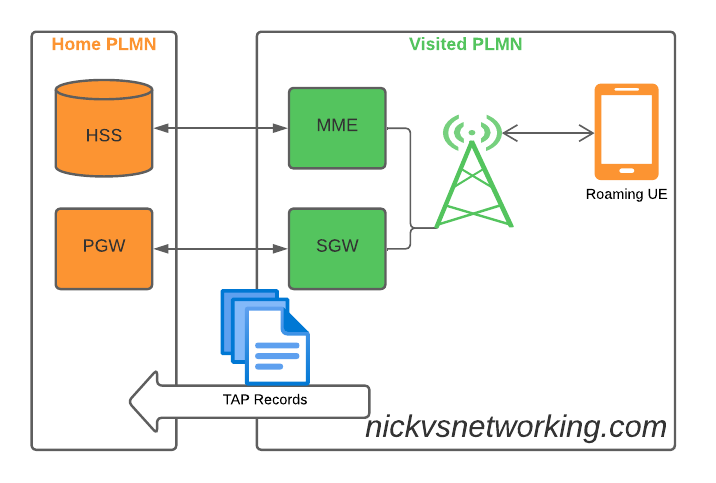
So what does this actually mean? Well, if you’re MNO A and a customer from MNO B roams into your network, all the calls, SMS and data consumed by the roaming subscriber from MNO B will need to be billed to MNO B, by you, MNO A.
If a network operator wants to get paid for traffic used on their network by roaming subscribers, they’d better send out a TAP file to the roamer’s home network.
TAP is the file format generated my MNO A and sent to MNO B, containing all the usage charges that subscribers from MNO B have racked up while roaming into your network.
These are broken down into “Transactions” (CDRs), for events like making a call, connecting a PDN session and consuming data, or sending a text.
In the beginning of time, GSM provided only voice calling service. This meant that the only services a subscriber could consume while roaming was just making/receiving voice calls which were billed at the end of each month. – This meant billing was equally simple, every so often the visisted network would send the TAP files for the voice calls made by subscribers visited other networks, to the home networks, which would markup those charges, and add them onto the monthly invoice for each subscriber who was roaming.
But of course today, calling accounts for a tiny amount of usage on the network, but this happened gradually while passing through the introduction of SMS, CAMEL services, prepaid services, mobile data, etc. For all these services that could be offered, the TAP format had to evolve to handle each of these scenarios.
As we move towards a flat IP architecture, where voice calls and SMS sent while roaming are just data, TAP files for 4G and 5G networks only need to show data transactions, so the call objects, CAMEL parameters and SMS objects are all falling by the wayside.
What’s inside a TAP File
TAP uses the most beloved of formats – ASN1 to encode the data. This means it is strictly formatted and rigidly specified.
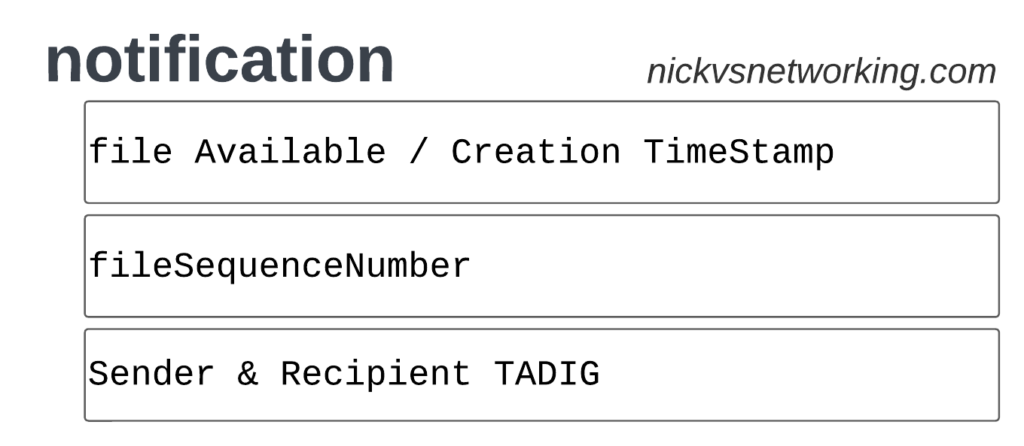
Each file contains a Sequence Number which is a monotonically increasing number, which allows the receiver to know if any files have been missed between the file that’s being currently parsed, an the previous file.
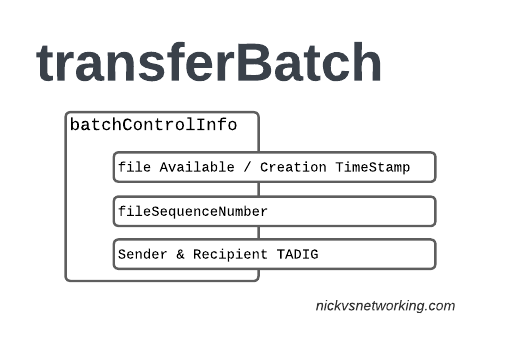
They also have a recipient and sender TADIG code, which is a code allocated by GSMA that uniquely identifies the sender and the recipient of the file.
The TAP records exist in one of two common format, Notification Records and transferBatch records.
These files are exchanged between operators, in practice this means “Dumped on an FTP server as agreed between the two”.
TAP Notification Records
Notifications are the simplest of TAP records and are used when there aren’t any CDRs for roaming events during the time period the TAP file covers.
These are essentially blank TAP files generated by the visited network to let the home network know it’s still there, but there are no roaming subs consuming services in that period.
Notification files are really simple, let’s take a look as one shown as JSON:
When we have services to bill and records to charge, that’s when instead we generate a transferBatch record.
It looks something like this:
There’s a lot going on in here, so let’s break it down section by section.
accountingInfo
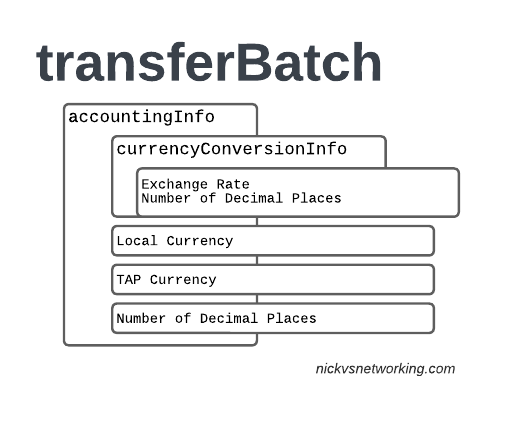
The accountingInfo section specifies the currency, exchange rate parameters.
Keep in mind a TAP record generated by an operator in the US, would use USD, while the receiver of the file may be a European MNO dealing in EUR.
This gets even more complicated if you’re dealing with more obscure currencies where an intermediary currency is used, that’s where we bring in SDRs (“Special Drawing Right”) that map to the dollar value to be charged, kinda – the roaming agreement defines how many SDRs are in a dollar, in the example below we’re not using any, but you do see it.
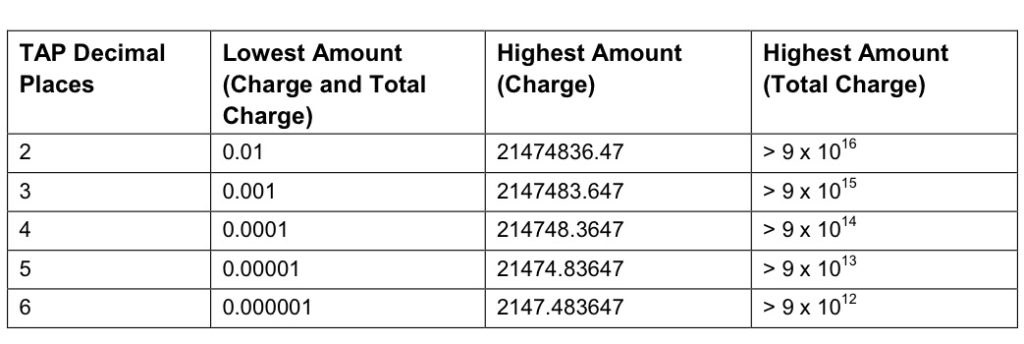
When it comes to numbers and decimal places, TAP doesn’t exactly make it easy.
Significant Digits are defined by counting the first number before the decimal point and all the numbers to the right of the decimal point, so for example the number 1.234 would be 4 significant digits (1 digit before the decimal point and 3 digits after it).
Decimal Places are not actually supported for the Value fields in the TAP file. This is tricky because especially today when roaming tariffs are quite low, these values can be quite small, and we need to represent them as an integer number. TAP defines decimal places as the number of digits after the decimal place.
When it comes to the maximum number of decimal places, this actually impacts the maximum number we can store in the field – as ASN1 strictly enforce what we put in it.
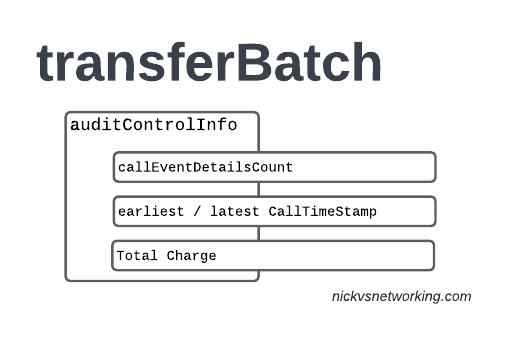
The auditControlInfo section contains the number of CDRs (callEventDetailsCount) contained in the TAP file, the timestamp of the first and last CDR in the file, the total charge and any tax charged.
All of the currency information was provided in the accountingInfo so this is just giving us our totals.
A CDR has 30 days from the time it was generated / service consumed by the roamer, to be baked into a TAP file. After this we can no longer charge for it, so it’s important that the earliestCallTimeStamp is not more than 30 days before the fileCreationTimeStamp seen in batchControlInfo.
batchControlInfo
The batchControlInfo section specifies the time the TAP file became available for transfer, the time the file was created (usually the same), the sequence number and the sender / recipient TADIG codes.
As mentioned earlier, we track sequence number so the receiver can know if a TAP file has been missed; for example if you’ve got TAP file 1 and TAP file 3 comes in, you can determine you’ve missed TAP file 2.
Now we’re getting to the meat & potatoes of our TAP record, the CDRs themselves.
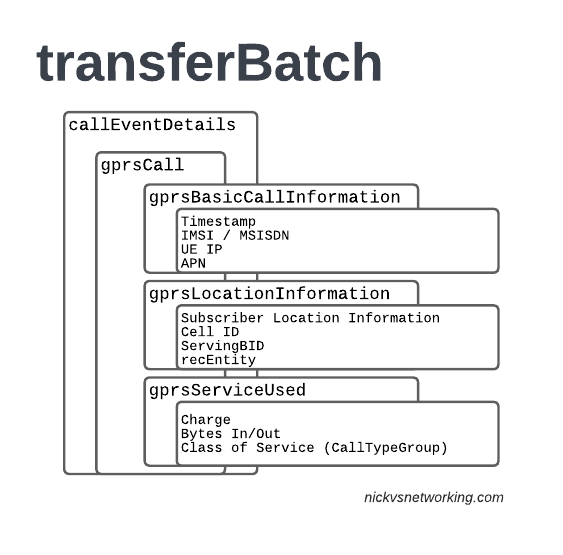
In LTE networks these are just records of data consumption, so let’s take a look inside the gprsCall records under callEventDetails:
In the gprsBasicCallInformation we’ve got as the name suggests the basic info about the data usage event. The time when the session started, the charging ID, the IMSI and the MSISDN of the subscriber to charge, along with their IP and the APN used.
Next up we have the gprsLocationInformation – rates and tariffs may be set based on the location of the subscriber, so we need to identify the area the sub was using the services to select correct tariff / rate for traffic in this destination.
The recEntity is the index number of the SGW / PGW used for the transaction (more on that later).
Next we have the gprsServiceUsed which, again as the name suggests, details the services used and the charge.
chargeDetailList contains the charged data (Made up of dataVolumeIncoming + dataVolumeOutgoing) and the cost.
The chargeableUnits indicates the actual data consumed, however most roaming agreements will standardise on some level of rounding, for example rounding up to the nearest Kilobyte (1024 bytes), so while a sub may consume 1025 bytes of data, they’d be billed for 2045 bytes of data. The data consumed is indicated in the chargeableUnits which indicates how much data was actually consumed, before any rounding policies where applied, while the amount that is actually charged (When taking into account rounding policies) isindicated inside Charged Units.
In the example below data usage is rounded up to the nearest 1024 bytes, 134390 bytes rounds up to the nearest 1024 gives you 135168 bytes.
As this is data we’re talking bytes, but not all bytes are created equal!
VoLTE traffic, using a QCI1 bearer is more valuable than QCI 9 cat videos, and TAP records take this into account in the Call Type Groups, each of which has a different price – Call Type Level 1 indicates the type of traffic, for S8 Home Routed LTE Traffic this is 10 (HGGSN/HP-GW), while Call Type Level 2 indicates the type of traffic as mapped to QCI values:
So Call Type Level 2 set to 20 indicates that this is “20 Unspecified/default LTE QCIs”, and Call Type Level 3 can be set to any value based on a defined inter-operator tariff.
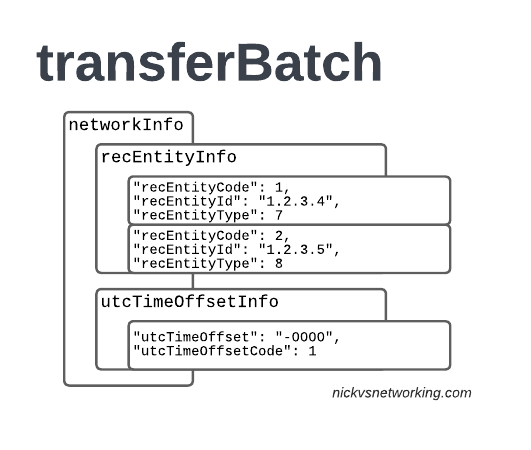
recEntityType 7 means a PGW and contains the IP of the PGW in the Home PLMN, while recEntityType 8 means SGW and is the SGW in the Visited PLMN.
So this means if we reference recEntityCode 2 in a gprsCall, that we’re referring to an SGW at 1.2.3.5.
Lastly also got the utcTimeOffsetInfo to indicate the timezones used and assign a unique code to it.
Using the Records
We as humans? These records aren’t meant for us.
They’re designed to be generated by the Visited PLMN and sent to to the home PLMN, which ingests it and pays the amount specified in the time agreed.
Generally this is an FTP server that the TAP records get dumped into, and an automated bank transfer job based on the totals for the TAP records.
Testing of the TAP records is called “TADIG Testing” and it’s something we’ll go into another day, but in essence it’s validating that the output and contents of the files meet what both operators think is the contract pricing and specifications.
So that’s it! That’s what’s in a TAP record, what it does and how we use it!
GSMA are introducing BCE – Billing & Charging Evolution, a new standard, designed to last for the next 30+ years like TAP has. It’s still in its early days, but that’s the direction the GSMA has indicated it would like to go.
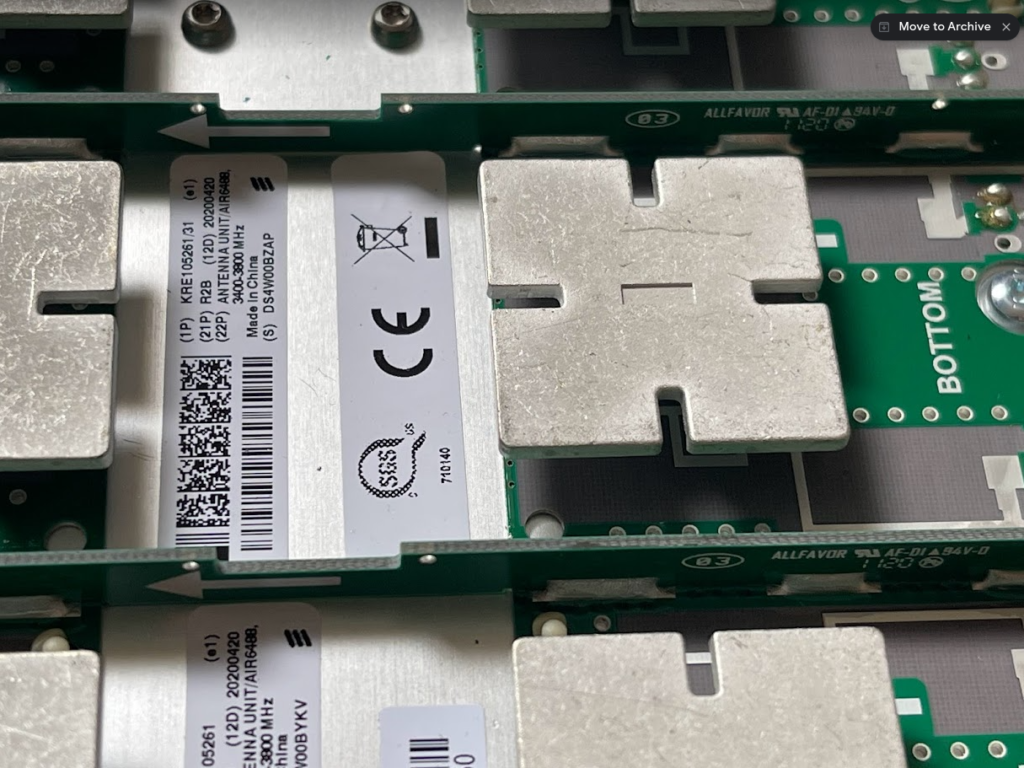
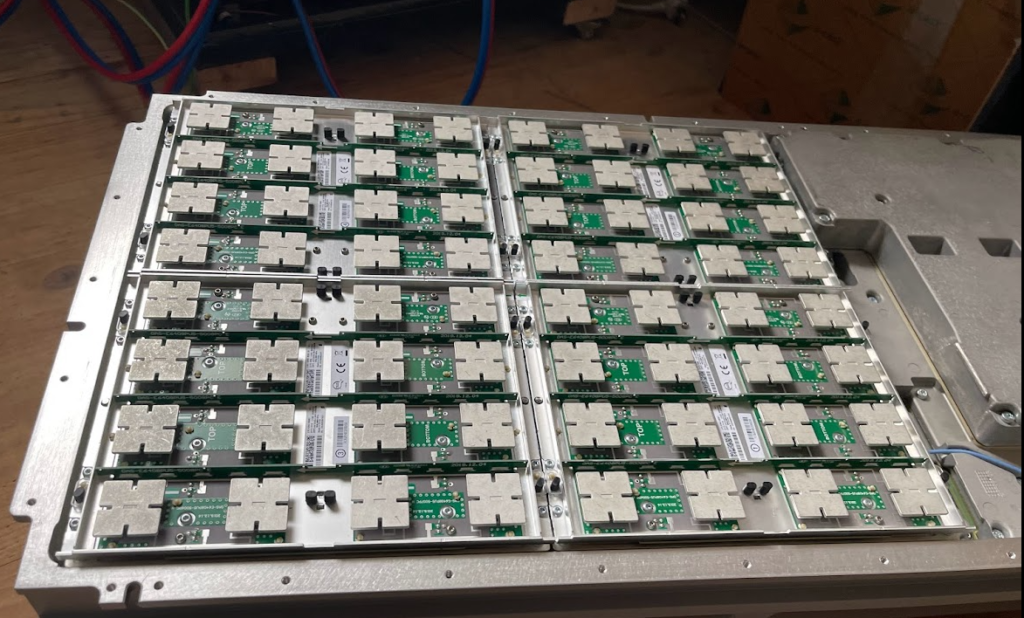
For the past few months I’ve had a Band 78 NR active antenna unit sitting next to my desk.
It’s a very cool bit of kit that doesn’t get enough love, but I thought I’d pop open the radome and take a peek inside.
Individual antenna elements
What I found very interesting is that it’s not all antennas in there!
… 29, 30, 31, 32. Yup. Checks out.
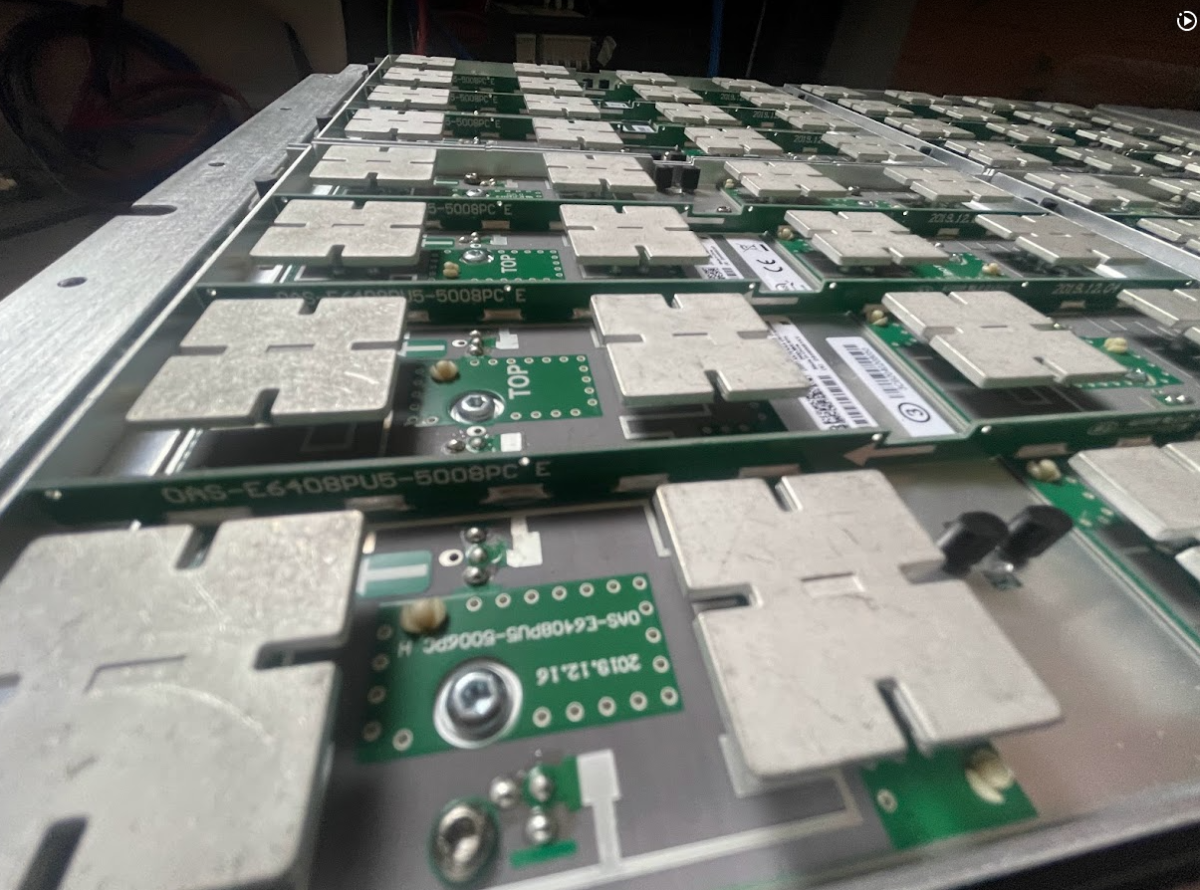
There are the expected number of antennas (I mean if I opened it up and found 31 antennas I’d have been surprised) but they don’t take up the whole volume of the unit, only about half,
AAU with Radome reinstalled
Well, after that strip show, back to sitting in my office until I need to test something 5G SA again…
Misunderstood, under appreciated and more capable than people give it credit for, is our PCRF.
But what does it do?
Most folks describe the PCRF in hand wavy-terms – “it does policy and charging” is the answer you’ll get, but that doesn’t really tell you anything.
So let’s answer it in a way that hopefully makes some practical sense, starting with the acronym “PCRF” itself, it stands for Policy and Charging Rules Function, which is kind of two functions, one for policy and one for rules, so let’s take a look at both.
Policy
In cellular world, as in law, policy is the rules.
For us some examples of policy could be a “fair use policy” to limit customer usage to acceptable levels, but it can also be promotional packages, services like “free Spotify” packages, “Voice call priority” or “unmetered access to Nick’s Blog and maximum priority” packages, can be offered to customers.
All of these are examples of policy, and to make them work we need to target which subscribers and traffic we want to apply the policy to, and then apply the policy.
Charging Rules
Charging Rules are where the policy actually gets applied and the magic happens.
It’s where we take our policy and turn it into actionable stuff for the cellular world.
Let’s take an example of “unmetered access to Nick’s Blog and maximum priority” as something we want to offer in all our cellular plans, to provide access that doesn’t come out of your regular usage, as well as provide QCI 5 (Highest non dedicated QoS) to this traffic.
To achieve this we need to do 3 things:
Profile the traffic going to this website (so we capture this traffic and not regular other internet traffic)
Charge it differently – So it’s not coming from the subscriber’s regular balance
Up the QoS (QCI) on this traffic to ensure it’s high priority compared to the other traffic on the network
So how do we do that?
Profiling Traffic
So the first step we need to take in providing free access to this website is to filter out traffic to this website, from the traffic not going to this website.
Let’s imagine that this website is hosted on a single machine with the IP 1.2.3.4, and it serves traffic on TCP port 443. This is where IPFilterRules (aka TFTs or “Traffic Flow Templates”) and the Flow-Description AVP come into play. We’ve covered this in the past here, but let’s recap:
IPFilterRules are defined in the Diameter Base Protocol (IETF RFC 6733), where we can learn the basics of encoding them,
They take the format:
action dir proto from src to dst
The action is fairly simple, for all our Dedicated Bearer needs, and the Flow-Description AVP, the action is going to be permit. We’re not blocking here.
The direction (dir) in our case is either in or out, from the perspective of the UE.
Next up is the protocol number (proto), as defined by IANA, but chances are you’ll be using 17 (UDP) or 6 (TCP).
The from value is followed by an IP address with an optional subnet mask in CIDR format, for example from 10.45.0.0/16would match everything in the 10.45.0.0/16 network.
Following from you can also specify the port you want the rule to apply to, or, a range of ports.
Like the from, the tois encoded in the same way, with either a single IP, or a subnet, and optional ports specified.
And that’s it!
So let’s create a rule that matches all traffic to our website hosted on 1.2.3.4 TCP port 443,
permit out 6 from 1.2.3.4 443 to any 1-65535
permit out 6 from any 1-65535 to 1.2.3.4 443
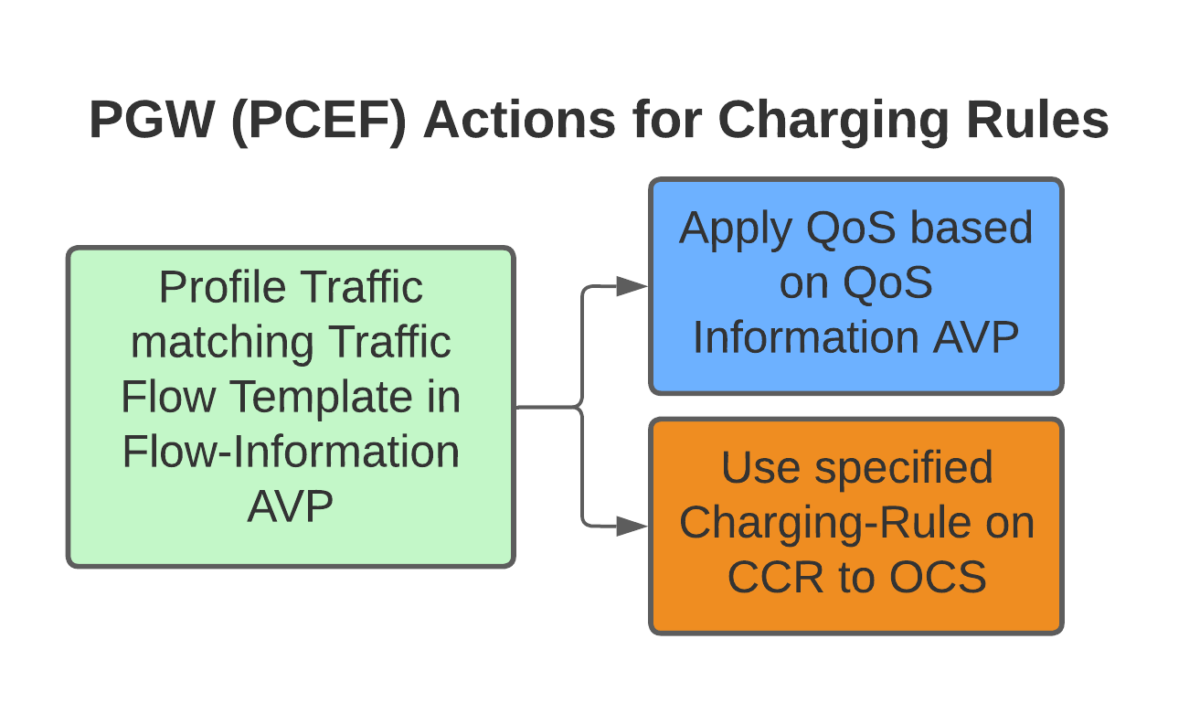
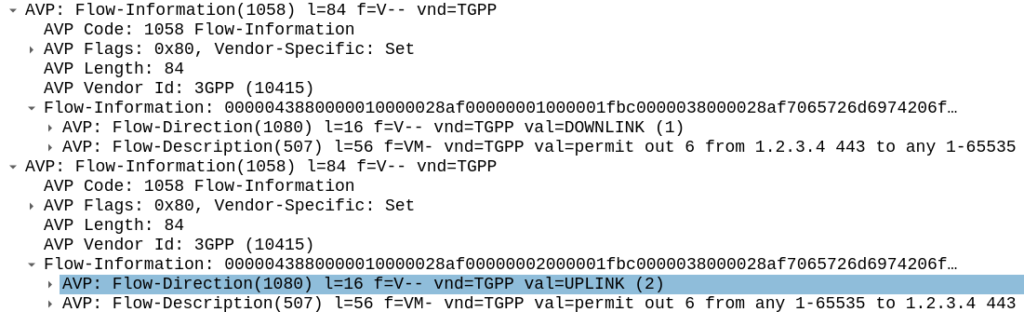
All this info gets put into the Flow-Information AVPs:
With the above, any traffic going to/from 1.23.4 on port 443, will match this rule (unless there’s another rule with a higher precedence value).
Charging Actions
So with our traffic profiled, the next question is what actions are we going to take, well there’s two, we’re going to provide unmetered access to the profiled traffic, and we’re going to use QCI 4 for the traffic (because you’ll need a guaranteed bit rate bearer to access!).
Charging-Group for Profiled Traffic
To allow for Zero Rating for traffic matching this rule, we’ll need to use a different Rating Group.
Let’s imagine our default rating group for data is 10000, then any normal traffic going to the OCS will use rating group 10000, and the OCS will apply the specific rates and policies based on that.
Rating Groups are defined in the OCS, and dictate what rates get applied to what Rating Groups.
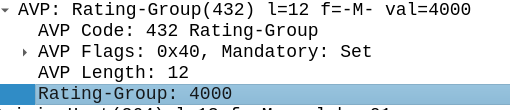
For us, our default rating group will be charged at the normal rates, but we can define a rating group value of 4000, and set the OCS to provide unlimited traffic to any Credit-Control-Requests that come in with Rating Group 4000.
This is how operators provide services like “Unlimited Facebook” for example, a Charging Rule matches the traffic to Facebook based on TFTs, and then the Rating Group is set differently to the default rating group, and the OCS just allows all traffic on that rating group, regardless of how much is consumed.
Inside our Charging-Rule-Definition, we populate the Rating-Group AVP to define what Rating Group we’re going to use.
Setting QoS for Profiled Traffic
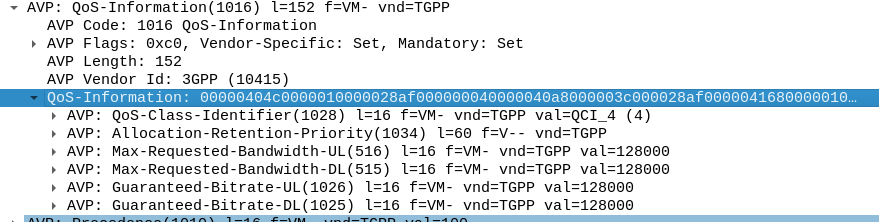
The QoS Description AVP defines which QoS parameters (QCI / ARP / Guaranteed & Maximum Bandwidth) should be applied to the traffic that matches the rules we just defined.
As mentioned at the start, we’ll use QCI 4 for this traffic, and allocate MBR/GBR values for this traffic.
Putting it Together – The Charging Rule
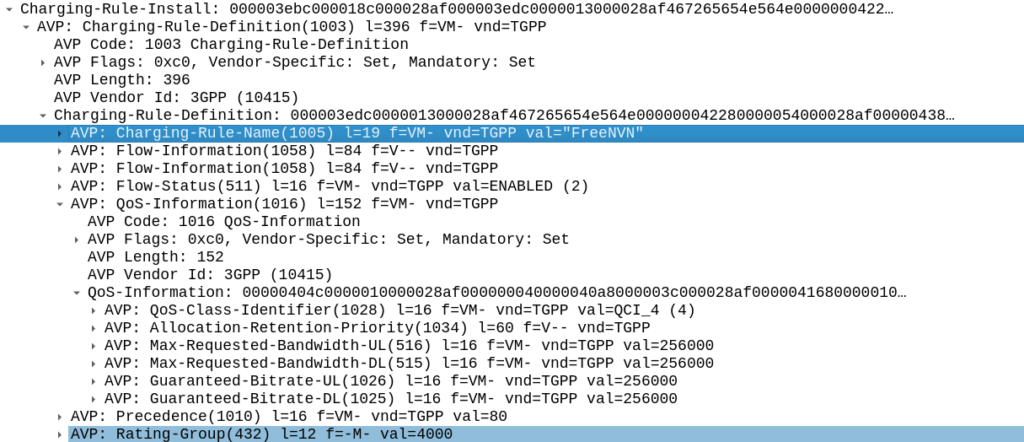
So with our TFTs defined to match the traffic, our Rating Group to charge the traffic and our QoS to apply to the traffic, we’re ready to put the whole thing together.
So here it is, our “Free NVN” rule:
I’ve attached a PCAP of the flow to this post.
In our next post we’ll talk about how the PGW handles the installation of this rule.
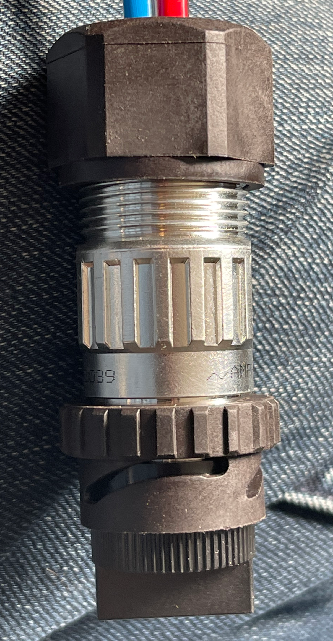
Something that’s kind of great is that the current generation of Ericsson RRUs and Nokia RRUs, use the same power connector – The Amphenol “Amphe-OBTS” series connector.
Construction and wiring of these connectors is the same for both, and with one little trick, we can use the connector for both Ericsson and Nokia RRUs (Airscale and later).
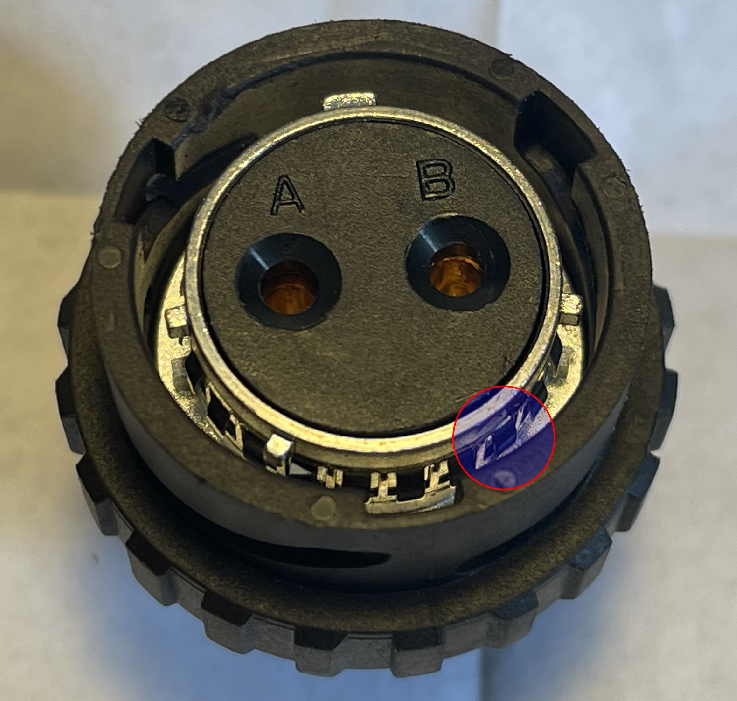
This pin that stops the connector from being “universal” but is easily removed.
The connectors are not quite universal, in order to use it in both you need to knock off a small pin on the connector, I’d suggest doing this before you assemble it, put the connector on it’s back, facing upwards, and hit this with a screwdriver / chisel and it’ll pop off with very little effort.
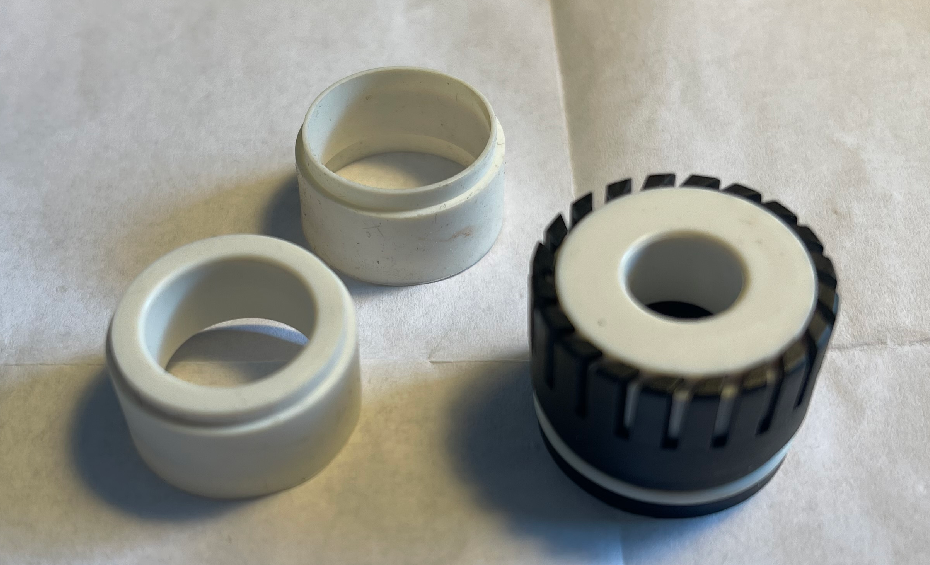
Assembling the connectors starts by working out the diameter of the grommet you need to fit your cable, the connector comes with the grommet for 9-14mm, but in the bag you’ll usually get grommets for 6-9mm cable and 14-18mm cable.
Grab the correct one for your cable diameter, and pop into the black fingered cage (‘gland adapter’) shown in the bottom right of the below photo.
Grommets and gland adapter
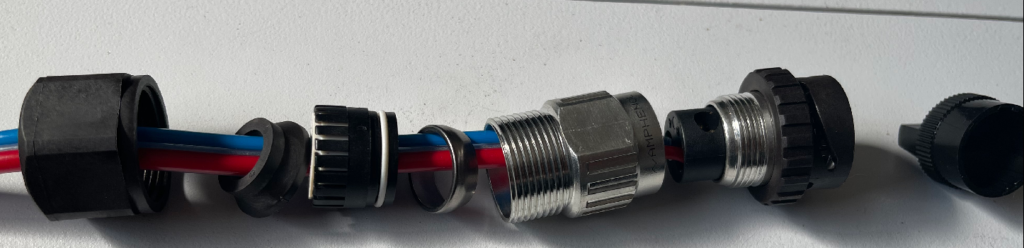
Next we line all the parts up along the cable and screw it all together:
The end-cap is actually very useful for stopping the female end of the connector from spinning when you’re assembling the cable, so don’t throw it away!
Next we’ll need to define our rt_pyform config, this is a super simple 3 line config file that specifies the path of what we’re doing:
DirectoryPath = "."        # Directory to search
ModuleName = "script"      # Name of python file. Note there is no .py extension
FunctionName = "transform" # Python function to call
The DirectoryPath directive specifies where we should search for the Python code, and ModuleName is the name of the Python script, lastly we have FunctionName which is the name of the Python function that does the rewriting.
Now let’s write our Python function for the transformation.
The Python function much have the correct number of parameters, must return a string, and must use the name specified in the config.
The following is an example of a function that prints out all the values it receives:
Note the order of the arguments and that return is of the same type as the AVP value (string).
We can expand upon this and add conditionals, let’s take a look at some more complex examples:
def transform(appId, flags, cmdCode, HBH_ID, E2E_ID, AVP_Code, vendorID, value):
    print('[PYTHON]')
    print(f'|-> appId: {appId}')
    print(f'|-> flags: {hex(flags)}')
    print(f'|-> cmdCode: {cmdCode}')
    print(f'|-> HBH_ID: {hex(HBH_ID)}')
    print(f'|-> E2E_ID: {hex(E2E_ID)}')
    print(f'|-> AVP_Code: {AVP_Code}')
    print(f'|-> vendorID: {vendorID}')
    print(f'|-> value: {value}')
    #IMSI Translation - if App ID = 16777251 and the AVP being evaluated is the Username
    if (int(appId) == 16777251) and int(AVP_Code) == 1:
        print("This is IMSI '" + str(value) + "' - Evaluating transformation")
        print("Original value: " + str(value))
        value = str(value[::-1]).zfill(15)
The above look at if the App ID is S6a, and the AVP being checked is AVP Code 1 (Username / IMSI ) and if so, reverses the username, so IMSI 1234567 becomes 7654321, the zfill is just to pad with leading 0s if required.
Now let’s do another one for a Realm Rewrite:
def transform(appId, flags, cmdCode, HBH_ID, E2E_ID, AVP_Code, vendorID, value):

    #Print Debug Info
    print('[PYTHON]')
    print(f'|-> appId: {appId}')
    print(f'|-> flags: {hex(flags)}')
    print(f'|-> cmdCode: {cmdCode}')
    print(f'|-> HBH_ID: {hex(HBH_ID)}')
    print(f'|-> E2E_ID: {hex(E2E_ID)}')
    print(f'|-> AVP_Code: {AVP_Code}')
    print(f'|-> vendorID: {vendorID}')
    print(f'|-> value: {value}')
    #Realm Translation
    if int(AVP_Code) == 283:
        print("This is Destination Realm '" + str(value) + "' - Evaluating transformation")
    if value == "epc.mnc001.mcc001.3gppnetwork.org":
        new_realm = "epc.mnc999.mcc999.3gppnetwork.org"
        print("translating from " + str(value) + " to " + str(new_realm))
        value = new_realm
    else:
        #If the Realm doesn't match the above conditions, then don't change anything
        print("No modification made to Realm as conditions not met")
    print("Updated Value: " + str(value))
In the above block if the Realm is set to epc.mnc001.mcc001.3gppnetwork.org it is rewritten to epc.mnc999.mcc999.3gppnetwork.org, hopefully you can get a handle on the sorts of transformations we can do with this – We can translate any string type AVPs, which allows for hostname, realm, IMSI, Sh-User-Data, Location-Info, etc, etc, to be rewritten.
NB-IoT introduces support for NIDD – Non-IP Data Delivery (NIDD) which is one of the cool features of NB-IoT that’s gaining more widespread adoption.
Let’s take a deep dive into NIDD.
The case against IP for IoT
In the over 40 years since IP was standardized, we’ve shoehorned many things onto IP, but IP was never designed or optimized for low power, low throughput applications.
For the battery life of an IoT device to be measured in years, it has to be very selective about what power hungry operations it does. Transmitting data over the air is one of the most power-intensive operations an IoT device can perform, so we need to do everything we can to limit how much data is sent, and how frequently.
Use Case – NB-IoT Tap
Let’s imagine we’re launching an IoT tap that transmits information about water used, as part of our revolutionary new “Water as a Service” model (WaaS) which removes the capex for residents building their own water treatment plant in their homes, and instead allows dynamic scaling of waterloads as they move to our new opex model.
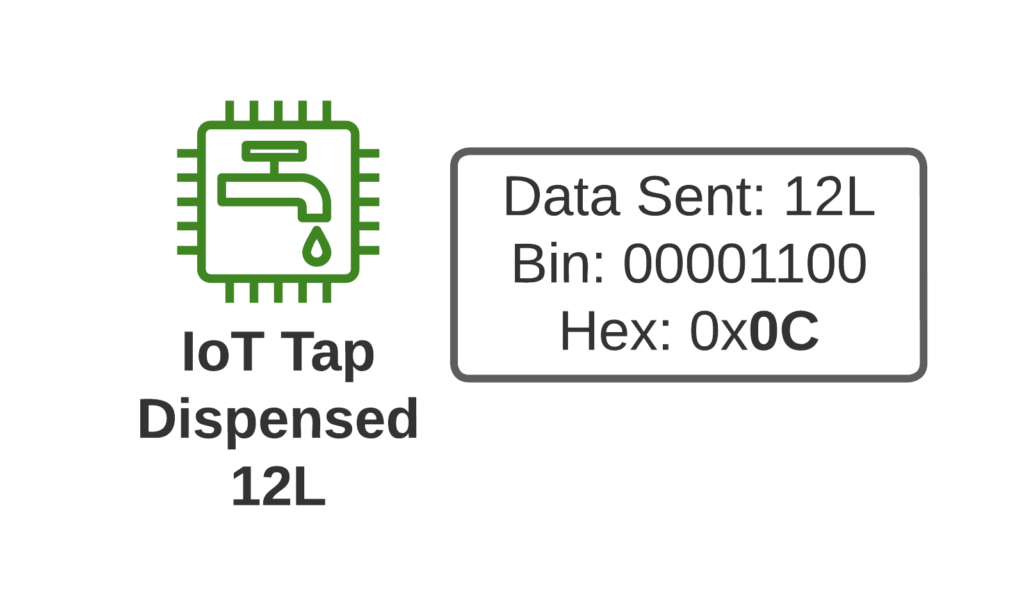
If I turn on the tap and use 12L of water, when I turn off the tap, our IoT tap encodes the usage onto a single byte and sends the usage information to our rain-cloud service provider.
So we’re not constantly changing the batteries in our taps, we need to send this one byte of data as efficiently as possible, so as to maximize the battery life.
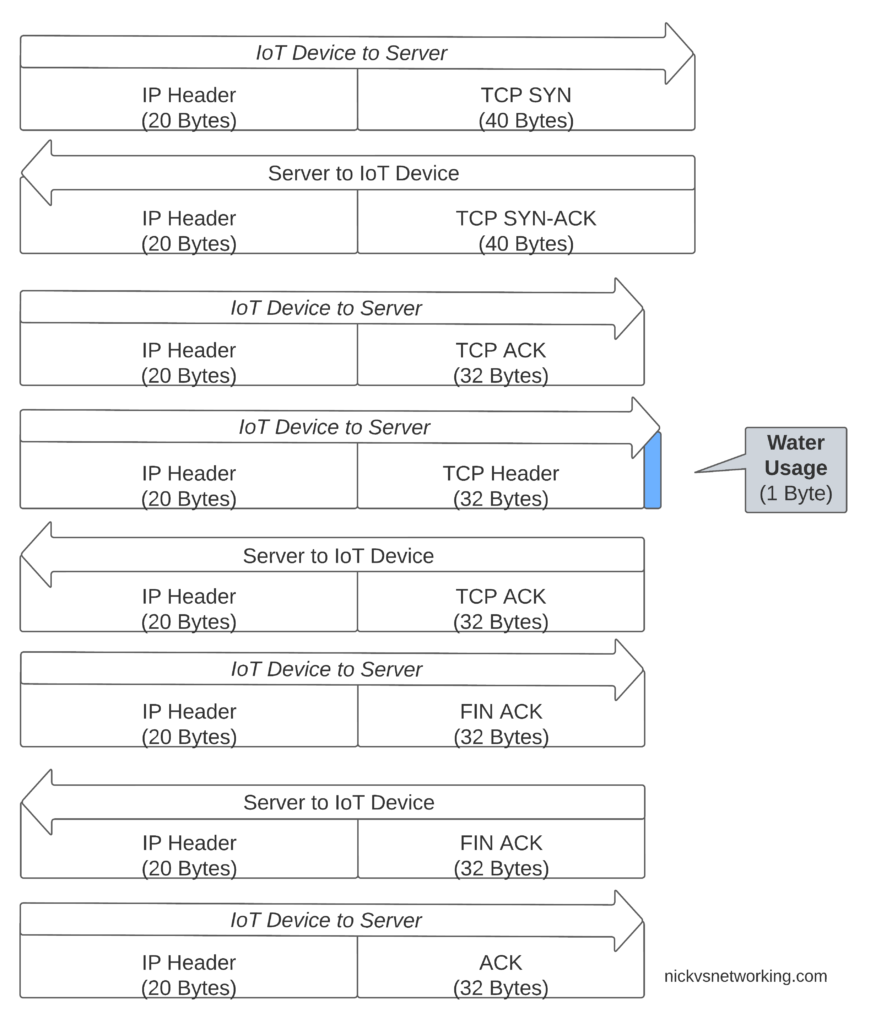
If we were to transport our data on TCP, well we’d need a 3 way handshake and several messages just to transmit the data we want to send.
Let’s see how our one byte of data would look if we transported it on TCP.
That sliver of blue in the diagram is our usage component, the rest is overhead used to get it there. Seems wasteful huh?
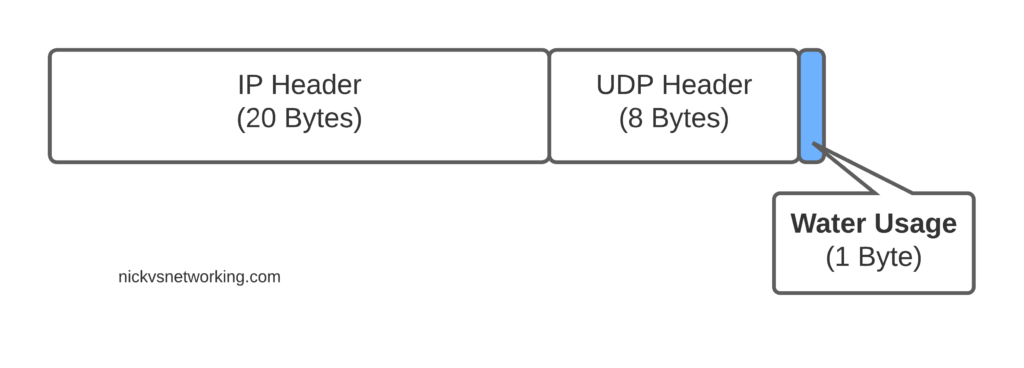
Sure, TCP isn’t great for this you say, you should use UDP! But even if we moved away from TCP to UDP, we’ve still got the IPv4 header and the UDP header wasting 28 bytes.
For efficiency’s sake (To keep our batteries lasting as long as possible) we want to send as few messages as possible, and where we do have to send messages, keep them very short, so IP is not a great fit here.
Enter NIDD – Non-IP Data Delivery.
Through NIDD we can just send the single hex byte, only be charged for the single hex byte, and only stay transmitting long enough to send this single byte of hex (Plus the NBIoT overheads / headers).
Compared to UDP transport, NIDD provides us a reduction of 28 bytes of overhead for each message, or a 96% reduction in message size, which translates to real power savings for our IoT device.
In summary – the more sending your device has to do, the more battery it consumes. So in a scenario where you’re trying to maximize power efficiency to keep your batter powered device running as long as possible, needing to transmit 28 bytes of wasted data to transport 1 byte of usable data, is a real waste.
Delivering the Payload
NIDD traffic is transported as raw hex data end to end, this means for our 1 byte of water usage data, the device would just send the hex value to be transferred and it’d pop out the other end.
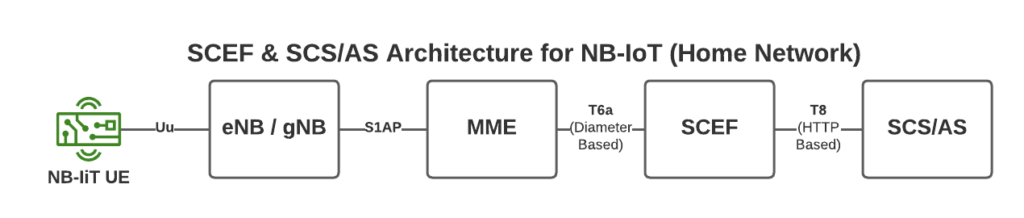
To support this we introduce a new network element called the SCEF –Service Capability Exposure Function.
From a developer’s perspective, the SCEF is the gateway to our IoT devices. Through the RESTful API on the SCEF (T8 API), we can send and receive raw hex data to any of our IoT devices.
When one of our Water-as-a-Service Taps sends usage data as a hex byte, it’s the software talking on the T8 API to the SCEF that receives this data.
Data of course needs to be addressed, so we know where it’s coming from / going to, and T8 handles this, as well as message reliability, etc, etc.
This is a telco blog, so we should probably cover the MME connection, the MME talks via Diameter to the SCEF. In our next post we’ll go into these signaling flows in more detail.
If you’re wondering what the status of Open Source SCEF implementations are, then you may have already guessed I’m working on one!
Hopefully by now you’ve got a bit of an idea of how NIDD works in NB-IoT, and in our next posts we’ll dig deeper into the flows and look at some PCAPs together.
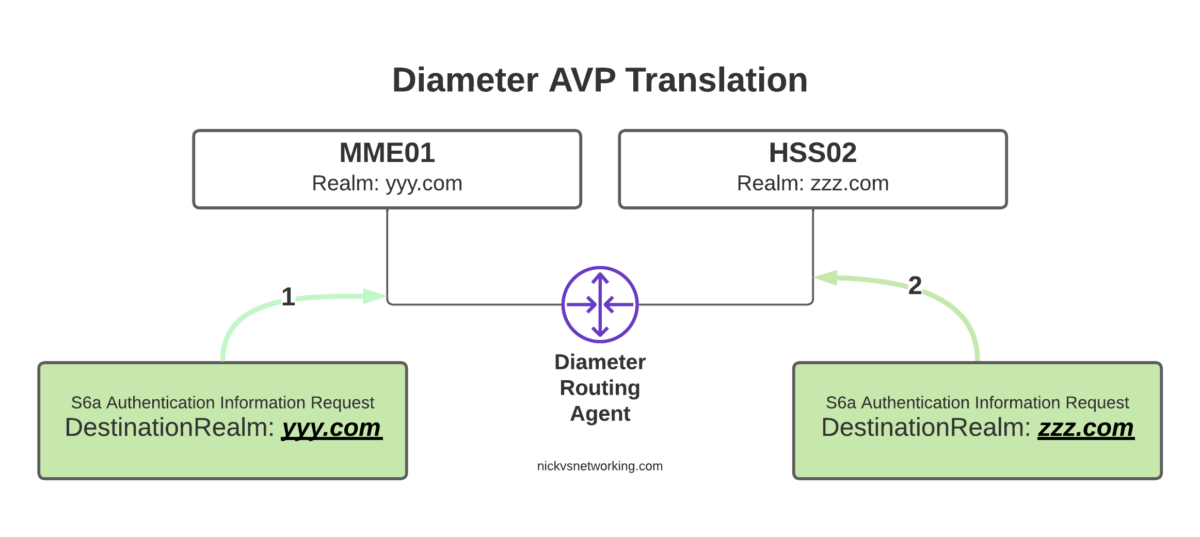
Having a central pair of Diameter routing agents allows us to drastically simplify our network, but what if we want to perform some translations on AVPs?
For starters, what is an AVP transformation? Well it’s simply rewriting the value of an AVP as the Diameter Request/Response passes through the DRA. A request may come into the DRA with IMSI xxxxxx and leave with IMSI yyyyyy if a translation is applied.
So why would we want to do this?
Well, what if we purchased another operator who used Realm X, and we use Realm Y, and we want to link the two networks, then we’d need to rewrite Realm Y to Realm X, and Realm X to Realm Y when they communicate, AVP transformations allow for this.
If we’re an MVNO with hosted IMSIs from an MNO, but want to keep just the one IMSI in our HSS/OCS, we can translate from the MNO hosted IMSI to our internal IMSI, using AVP transformations.
If our OCS supports only one rating group, and we want to rewrite all rating groups to that one value, AVP transformations cover this too.
There are lots of uses for this, and if you’ve worked with a bit of signaling before you’ll know that quite often these sorts of use-cases come up.
So how do we do this with freeDiameter?
To handle this I developed a module for passing each AVP to a Python function, which can then apply any transformation to a text based value, using every tool available to you in Python.
In the next post I’ll introduce rt_pyform and how we can use it with Python to translate Diameter AVPs.
Way back in part 2 we discussed the basic routing logic a DRA handles, but what if we want to do something a bit outside of the box in terms of how we route?
For me, one of the most useful use cases for a DRA is to route traffic based on IMSI / Username. This means I can route all the traffic for MVNO X to MVNO X’s HSS, or for staging / test subs to the test HSS enviroment.
FreeDiameter has a bunch of built in logic that handles routing based on a weight, but we can override this, using the rt_default module.
In our last post we had this module commented out, but let’s uncomment it and start playing with it:
In the above code we’ve uncommented rt_default and rt_redirect.
You’ll notice that rt_default references a config file, so we’ll create a new file in our /etc/freeDiameter directory called rt_default.conf, and this is where the magic will happen.
A few points before we get started:
This overrides the default routing priorities, but in order for a peer to be selected, it has to be in an Open (active) state
The peer still has to have advertised support for the requested application in the CER/CEA dialog
The peers will still need to have all been defined in the freeDiameter.conf file in order to be selected
So with that in mind, and the 5 peers we have defined in our config above (assuming all are connected), let’s look at some rules we can setup using rt_default.
Intro to rt_default Rules
The rt_default.conf file contains a list of rules, each rule has a criteria that if matched, will result in the specified action being taken. The actions all revolve around how to route the traffic.
So what can these criteria match on? Here’s the options:
Item to Match
Code
Any
*
Origin-Host
oh=”STR/REG”
Origin-Realm
or=”STR/REG”
Destination-Host
dh=”STR/REG”
Destination-Realm
dr=”STR/REG”
User-Name
un=”STR/REG”
Session-Id
si=”STR/REG”
rt_default Matching Criteria
We can either match based on a string or a regex, for example, if we want to match anything where the Destination-Realm is “mnc001.mcc001.3gppnetwork.org” we’d use something like:
#Low score to HSS02
dr="mnc001.mcc001.3gppnetwork.org" : dh="hss02" += -70 ;
Now you’ll notice there is some stuff after this, let’s look at that.
We’re matching anything where the destination-host is set to hss02 (that’s the bit before the colon), but what’s the bit after that?
Well if we imagine that all our Diameter peers are up, when a message comes in with Destination-Realm “mnc001.mcc001.3gppnetwork.org”, looking for an HSS, then in our example setup, we have 4 HHS instances to choose from (assuming they’re all online).
In default Diameter routing, all of these peers are in the same realm, and as they’re all HSS instances, they all support the same applications – Our request could go to any of them.
But what we set in the above example is simply the following:
If the Destination-Realm is set to mnc001.mcc001.3gppnetwork.org, then set the priority for routing to hss02 to the lowest possible value.
So that leaves the 3 other Diameter peers with a higher score than HSS02, so HSS02 won’t be used.
Let’s steer this a little more,
Let’s specify that we want to use HSS01 to handle all the requests (if it’s available), we can do that by adding a rule like this:
#Low score to HSS02
dr="mnc001.mcc001.3gppnetwork.org" : dh="hss02" += -70 ;
#High score to HSS01
dr="mnc001.mcc001.3gppnetwork.org" : dh="hss01" += 100 ;
But what if we want to route to hss-lab if the IMSI matches a specific value, well we can do that too.
#Low score to HSS02
dr="mnc001.mcc001.3gppnetwork.org" : dh="hss02" += -70 ;
#High score to HSS01
dr="mnc001.mcc001.3gppnetwork.org" : dh="hss01" += 100 ;
#Route traffic for IMSI to Lab HSS
un="001019999999999999" : dh="hss-lab" += 200 ;
Now that we’ve set an entry with a higher score than hss01 that will be matched if the username (IMSI) equals 001019999999999999, the traffic will get routed to hss-lab.
But that’s a whole IMSI, what if we want to match only part of a field?
Well, we can use regex in the Criteria as well, so let’s look at using some Regex, let’s say for example all our MVNO SIMs start with 001012xxxxxxx, let’s setup a rule to match that, and route to the MVNO HSS with a higher priority than our normal HSS:
#Low score to HSS02
dr="mnc001.mcc001.3gppnetwork.org" : dh="hss02" += -70 ;
#High score to HSS01
dr="mnc001.mcc001.3gppnetwork.org" : dh="hss01" += 100 ;#Route traffic for IMSI to Lab HSS
un="001019999999999999" : dh="hss-lab" += 200 ;
#Route traffic where IMSI starts with 001012 to MVNO HSS
un=["^001012.*"] : dh="hss-mvno-x" += 200 ;
Let’s imagine that down the line we introduce HSS03 and HSS04, and we only want to use HSS01 if HSS03 and HSS04 are unavailable, and only to use HSS02 no other HSSes are available, and we want to split the traffic 50/50 across HSS03 and HSS04.
Firstly we’d need to add HSS03 and HSS04 to our FreeDiameter.conf file:
Then in our rt_default.conf we’d need to tweak our scores again:
#Low score to HSS02
dr="mnc001.mcc001.3gppnetwork.org" : dh="hss02" += 10 ;
#Medium score to HSS01
dr="mnc001.mcc001.3gppnetwork.org" : dh="hss01" += 20 ;
#Route traffic for IMSI to Lab HSS
un="001019999999999999" : dh="hss-lab" += 200 ;
#Route traffic where IMSI starts with 001012 to MVNO HSS
un=["^001012.*"] : dh="hss-mvno-x" += 200 ;
#High Score for HSS03 and HSS04dr="mnc001.mcc001.3gppnetwork.org" : dh="hss02" += 100 ;dr="mnc001.mcc001.3gppnetwork.org" : dh="hss04" += 100 ;
One quick tip to keep your logic a bit simpler, is that we can set a variety of different values based on keywords (listed below) rather than on a weight/score:
Behaviour
Name
Score
Do not deliver to peer (set lowest priority)
NO_DELIVERY
-70
The peer is a default route for all messages
DEFAULT
5
The peer is a default route for this realm
DEFAULT_REALM
10
REALM
15
Route to the specified Host with highest priority
FINALDEST
100
Rather than manually specifying the store you can use keywords like above to set the value
In our next post we’ll look at using FreeDiameter based DRA in roaming scenarios where we route messages across Diameter Realms.
FreeDiameter has been around for a while, and we’ve covered configuring the FreeDiameter components in Open5GS when it comes to the S6a interface, so you may have already come across FreeDiameter in the past, but been left a bit baffled as to how to get it to actually do something.
FreeDiameter is a FOSS implimentation of the Diameter protocol stack, and is predominantly used as a building point for developers to build Diameter applications on top of.
But for our scenario, we’ll just be using plain FreeDiameter.
So let’s get into it,
You’ll need FreeDiameter installed, and you’ll need a certificate for your FreeDiameter instance, more on that in this post.
Once that’s setup we’ll need to define some basics,
Inside freeDiameter.conf we’ll need to include the identity of our DRA, load the extensions and reference the certificate files:
What I typically refer to as Diameter interfaces / reference points, such as S6a, Sh, Sx, Sy, Gx, Gy, Zh, etc, etc, are also known as Applications.
Diameter Application Support
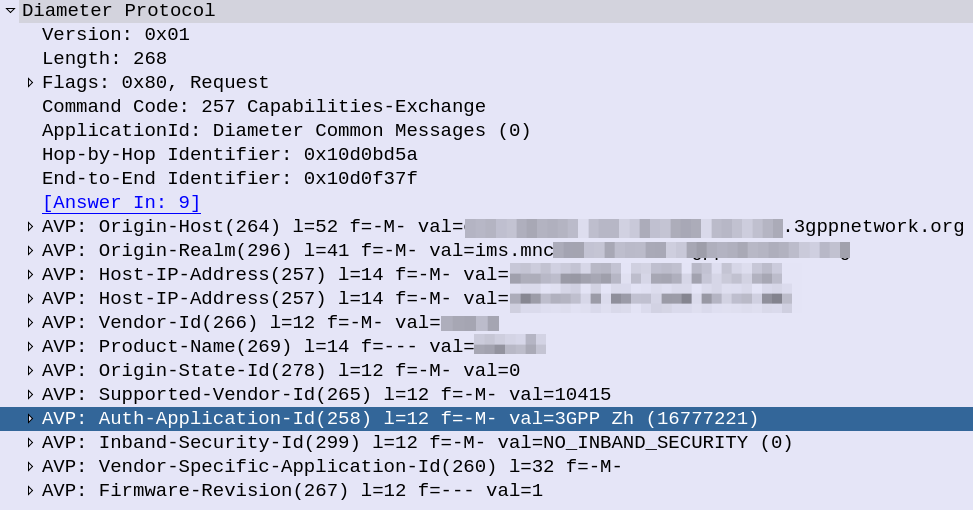
If you look inside the Capabilities Exchange Request / Answer dialog, what you’ll see is each side advertising the Applications (interfaces) that they support, each one being identified by an Application ID.
CER showing support for the 3GPP Zh Application-ID (Interface)
If two peers share a common Application-Id, then they can communicate using that Application / Interface.
For example, the above screenshot shows a peer with support for the Zh Interface (Spoiler alert, XCAP Gateway / BSF coming soon!). If two Diameter peers both have support for the Zh interface, then they can use that to send requests / responses to each other.
This is the basis of Diameter Routing.
Diameter Routing Tables
Like any router, our DRA needs to have logic to select which peer to route each message to.
For each Diameter connection to our DRA, it will build up a Diameter Routing table, with information on each peer, including the realm and applications it advertises support for.
Then, based on the logic defined in the DRA to select which Diameter peer to route each request to.
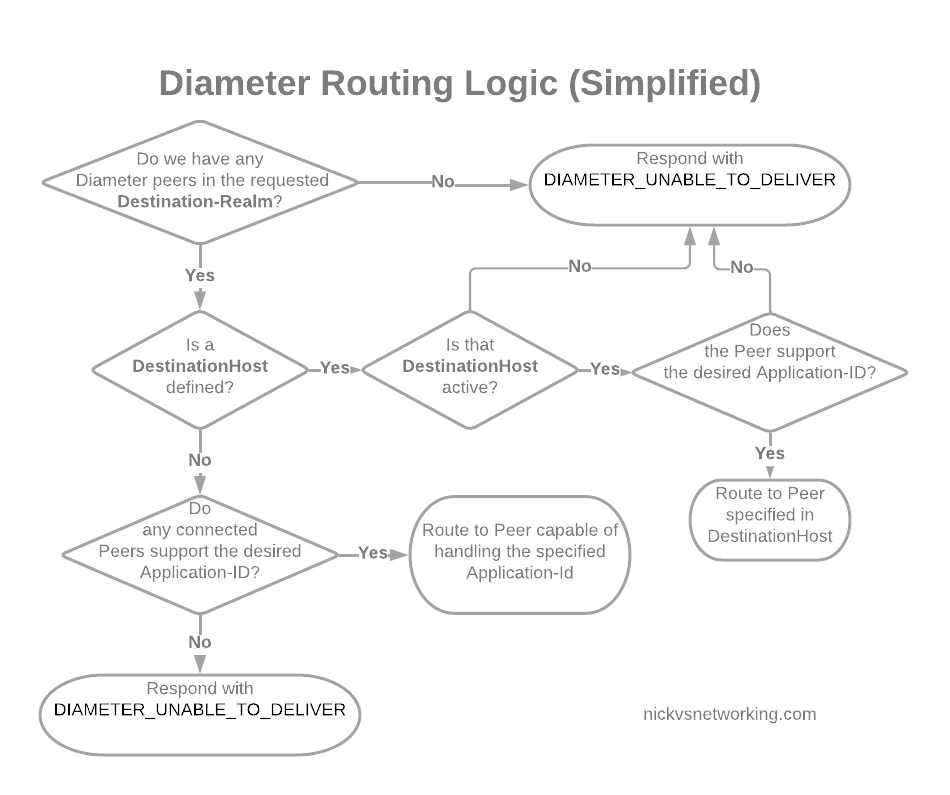
In its simplest form, Diameter routing is based on a few things:
Look at the DestinationRealm, and see if we have any peers at that realm
If we do then look at the DestinationHost, if that’s set, and the host is connected, and if it supports the specified Application-Id, then route it to that host
If no DestinationHost is specified, look at the peers we have available and find the one that supports the specified Application-Id, then route it to that host
Simplified Diameter Routing Table used by DRAs
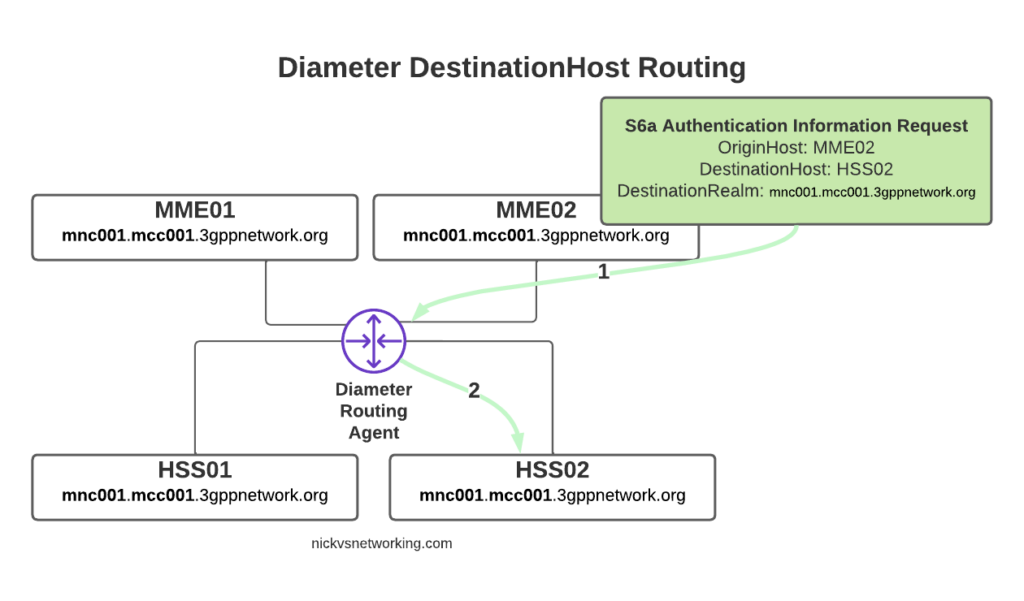
With this in mind, we can go back to looking at how our DRA may route a request from a connected MME towards an HSS.
Let’s look at some examples of this at play.
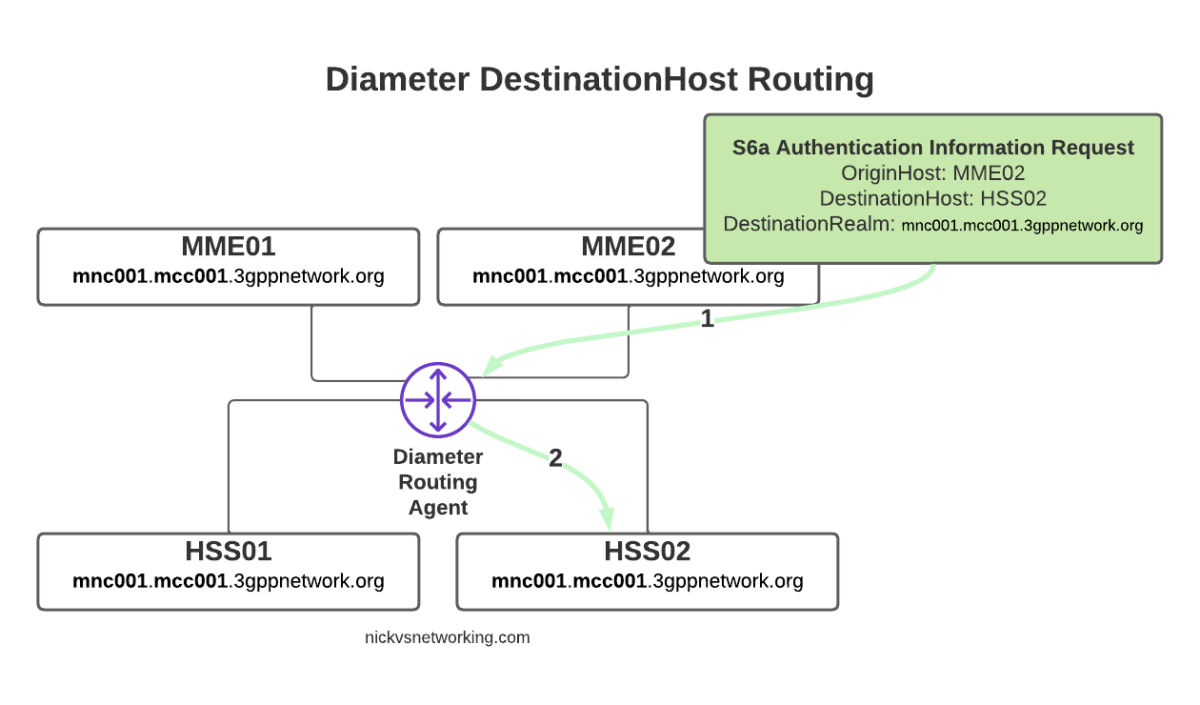
The request from MME02 is for DestinationRealm mnc001.mcc001.3gppnetwork.org, which our DRA knows it has 4 connected peers in (3 if we exclude the source of the request, as we don’t want to route it back to itself of course).
So we have 3 contenders still for who could get the request, but wait! We have a DestinationHost specified, so the DRA confirms the host is available, and that it supports the requested ApplicationId and routes it to HSS02.
So just because we are going through a DRA does not mean we can’t specific which destination host we need, just like we would if we had a direct link between each Diameter peer.
Conversely, if we sent another S6a request from MME01 but with no DestinationHost set, let’s see how that would look.
Again, the request is from MME02 is for DestinationRealm mnc001.mcc001.3gppnetwork.org, which our DRA knows it has 3 other peers it could route this to. But only two of those peers support the S6a Application, so the request would be split between the two peers evenly.
Clever Routing with DRAs
So with our DRA in place we can simplify the network, we don’t need to build peer links between every Diameter device to every other, but let’s look at some other ways DRAs can help us.
Load Control
We may want to always send requests to HSS01 and only use HSS02 if HSS01 is not available, we can do this with a DRA.
Or we may want to split load 75% on one HSS and 25% on the other.
Both are great use cases for a DRA.
Routing based on Username
We may want to route requests in the DRA based on other factors, such as the IMSI.
Our IMSIs may start with 001010001xxx, but if we introduced an MVNO with IMSIs starting with 001010002xxx, we’d need to know to route all traffic where the IMSI belongs to the home network to the home network HSS, and all the MVNO IMSI traffic to the MVNO’s HSS, and DRAs handle this.
Inter-Realm Routing
One of the main use cases you’ll see for DRAs is in Roaming scenarios.
For example, if we have a roaming agreement with a subscriber who’s IMSIs start with 90170, we can route all the traffic for their subs towards their HSS.
But wait, their Realm will be mnc901.mcc070.3gppnetwork.org, so in that scenario we’ll need to add a rule to route the request to a different realm.
DRAs handle this also.
In our next post we’ll start actually setting up a DRA with a default route table, and then look at some more advanced options for Diameter routing like we’ve just discussed.
One slight caveat, is that mutual support does not always mean what you may expect. For example an MME and an HSS both support S6a, which is identified by Auth-Application-Id 16777251 (Vendor ID 10415), but one is a client and one is a server. Keep this in mind!
Answer Question 1: Because they make things simpler and more flexible for your Diameter traffic. Answer Question 2: With free software of course!
All about DRAs
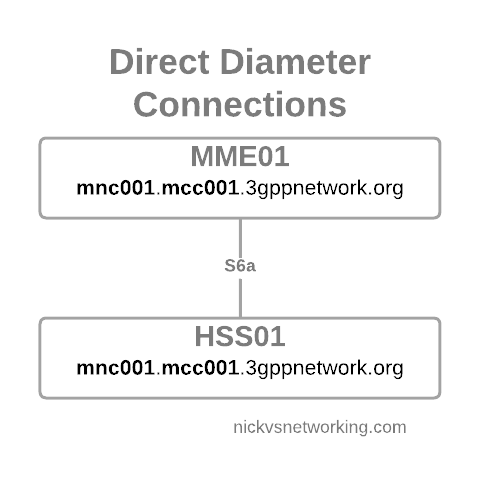
But let’s dive a little deeper. Let’s look at the connection between an MME and an HSS (the S6a interface).
Direct Diameter link between two Diameter Peers
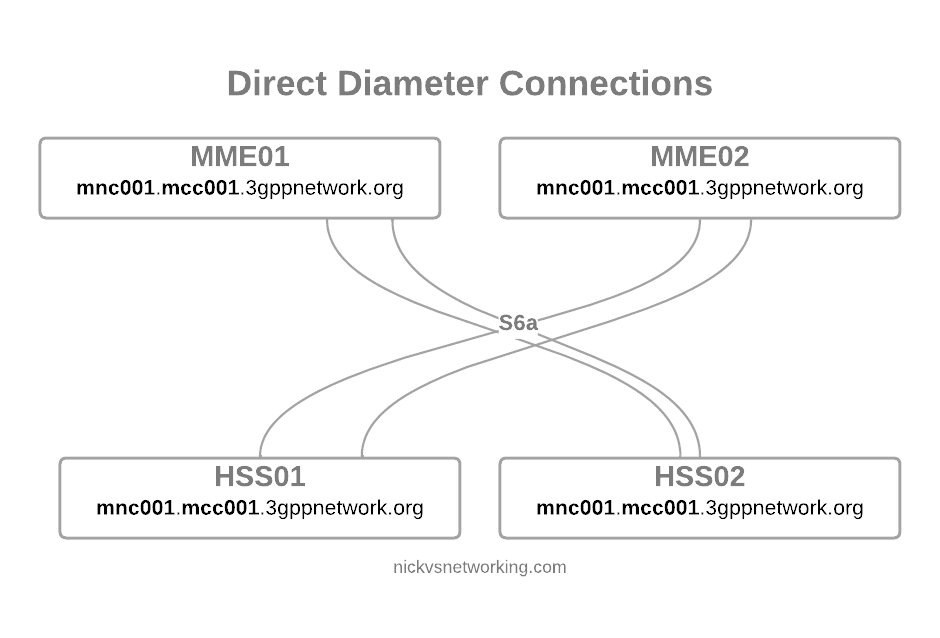
We configure the Diameter peers on MME1 and HSS01 so they know about each other and how to communicate, the link comes up and presto, away we go.
But we’re building networks here! N+1 redundancy and all that, so now we have two HSSes and two MMEs.
Direct Diameter link between 4 Diameter peers
Okay, bit messy, but that’s okay…
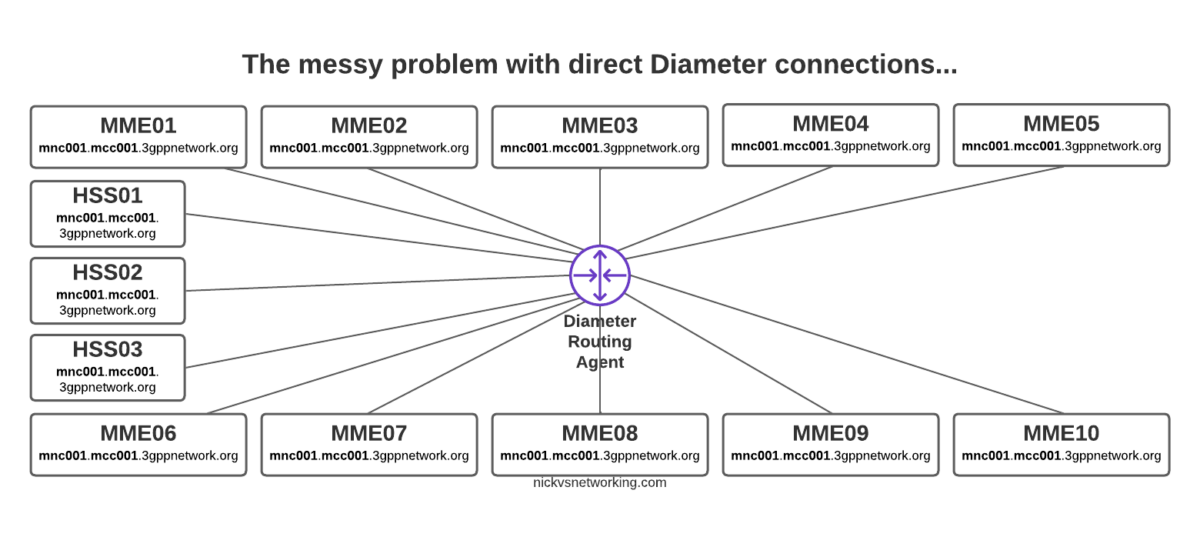
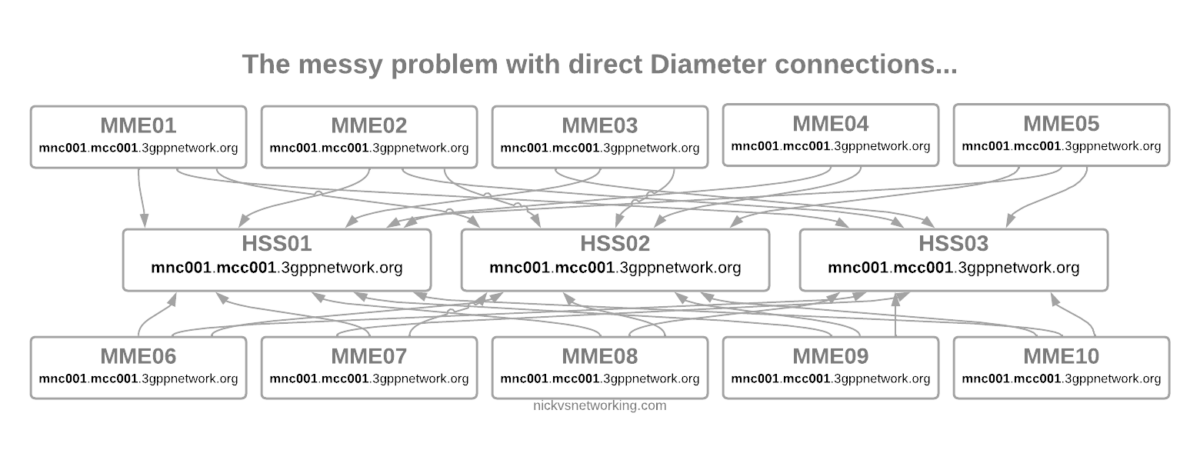
But then our network grows to 10 MMEs, and 3 HSSes and you can probably see where this is going, but let’s drive the point home.
Direct Diameter connections for a network with 10x MME and 3x HSS
Now imagine once you’ve set all this up you need to do some maintenance work on HSS03, so need to shut down the Diameter peer on 10 different MMEs in order to isolate it and deisolate it.
The problem here is pretty evident, all those links are messy, cumbersome and they just don’t scale.
If you’re someone with a bit of networking experience (and let’s face it, you’re here after all), then you’re probably thinking “What if we just had a central system to route all the Diameter messages?”
An Agent that could Route Diameter, a Diameter Routing Agent perhaps…
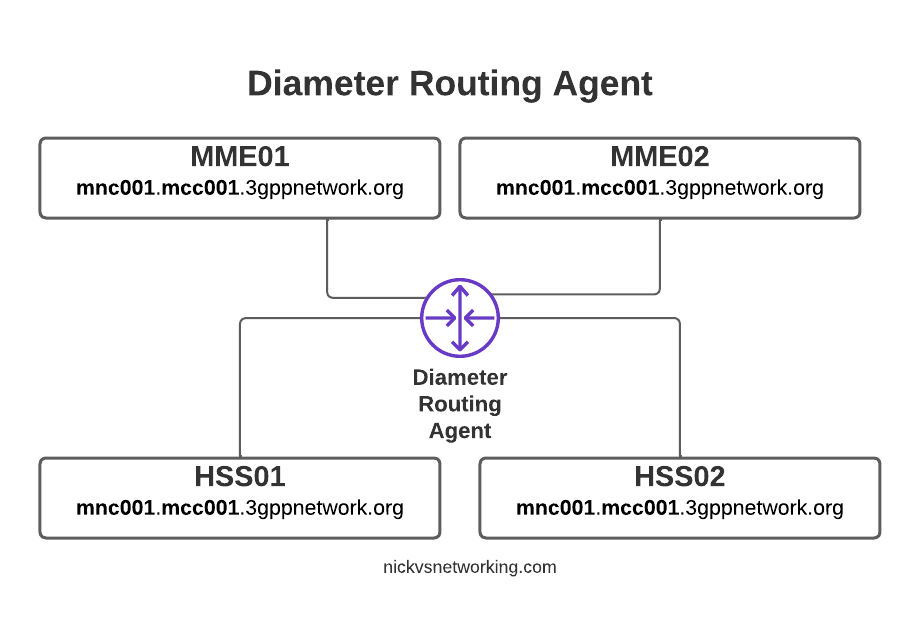
By introducing a DRA we build Diameter peer links between each of our Diameter devices (MME / HSS, etc) and the DRA, rather than directly between each peer.
With Diameter Routing Agent
Then from the DRA we can route Diameter requests and responses between them.
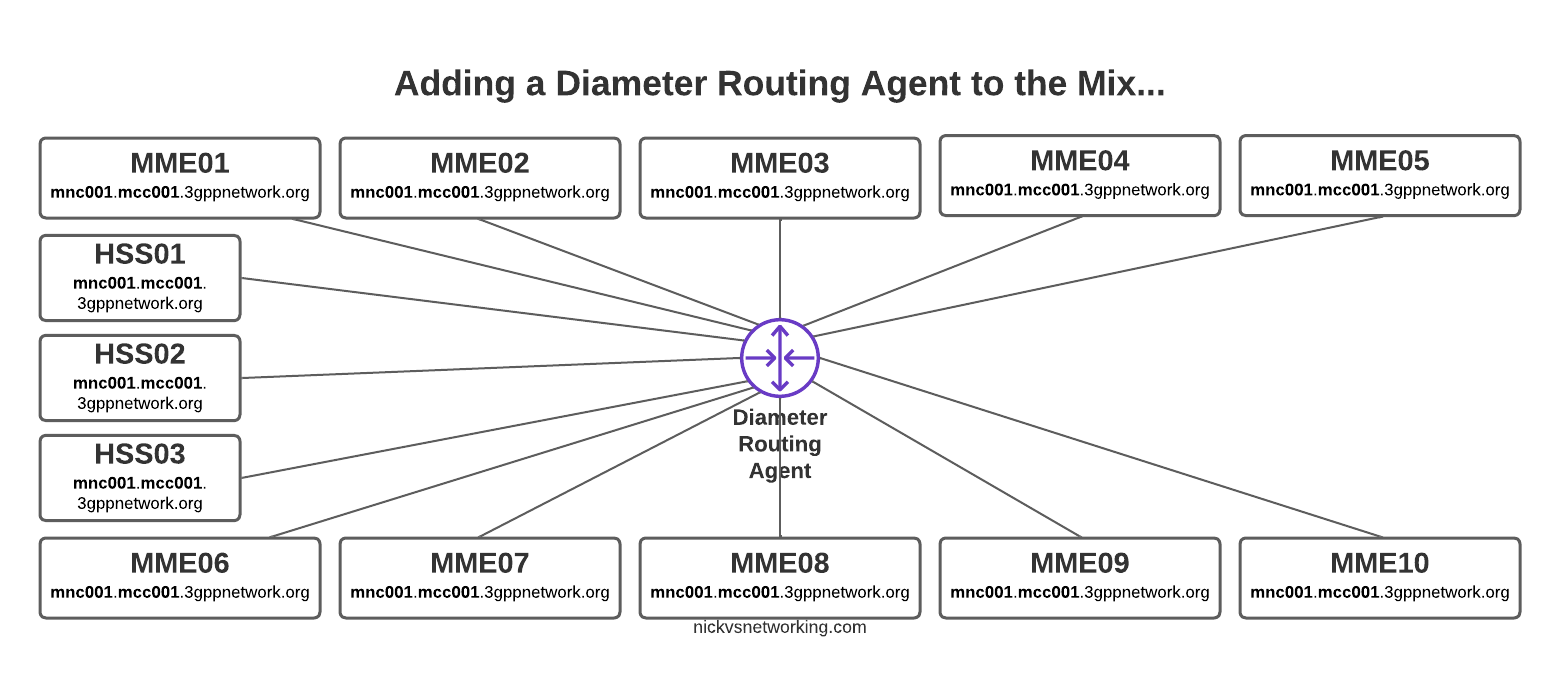
Let’s go back to our 10x MME and 3x HSS network and see how it looks with a DRA instead.
So much cleaner!
Not only does this look better, but it makes our life operating the network a whole lot easier.
Each MME sends their S6a traffic to the DRA, which finds a healthy HSS from the 3 and sends the requests to it, and relays the responses as well.
We can do clever load balancing now as well.
Plus if a peer goes down, the DRA detects the failure and just routes to one of the others.
If we were to introduce a new HSS, we wouldn’t need to configure anything on the MMEs, just add HSS04 to the DRA and it’ll start getting traffic.
Plus from an operations standpoint, now if we want to to take an HSS offline for maintenance, we just shut down the link on the HSS and all HSS traffic will get routed to the other two HSS instances.
In our next post we’ll talk about the Routing part of the DRA, how the decisions are made and all the nuances, and then in the following post we’ll actually build a DRA and start routing some traffic around!